 CrateEdit Pro
What it does. What it touches.
What a job touches
- Tags only
- The audio
- Neither
Twenty-eight jobs in one window, for MP3, WAV, AIFF, FLAC and M4A. Each row says what a job does and what it touches in your files: tags only, the audio itself, or neither.
Grids, cues and gain
-
Batch Grid
Scores every beatgrid in a folder, flags the ones to check and the ones whose tempo drifts, and writes the good ones to Serato.
tags only a whole crate

-
Auto cues
Places up to eight hot cues on every track, where its phrases start, named and colored by your Cue Template.
tags only a whole crate

-
Serato Gain Reset
Sets the gain Serato stored on a track back to 0 dB. First of its kind.
tags only one file or a crate

In one go
-
Crate Prep
Gives every track in a folder its grid, key, hot cues, clean tags, energy rating and gain reset. It can check new tracks against your library first, add them to a crate, and watch your downloads folder.
tags only a folder, or each new download
Add to a crate writes one crate file
Grids and cues by hand
-
Grid tools
Fix one grid yourself: tap the tempo, slip the grid, set the 1, or detect it again.
tags only one track

-
Kick-Lock
Separates the drums and snaps the grid to the kick.
tags only one track
macOS 14 or later
-
Hot cues and cue loops
Up to eight cues, each with a name and a color, set by hand or placed by Auto Cues. Any cue can be a loop of 1 to 32 bars.
tags only one track

Sound
-
Normalize
Brings a crate to one LUFS target, matched on the drop. An MP3 turned down stays lossless, and Serato’s cues, loops and grid stay right.
changes the audio a whole crate · or copies into a folder

-
Loudness meter
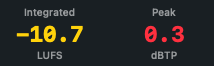
Meters a track in real time: LUFS, true peak and a VU needle.
writes nothing one track
-
Trim, fade, level
Cut the dead air, fade the ends, set the level. Undo until you render.
changes the audio one track

-
Converter
WAV, AIFF, FLAC, M4A/AAC, ALAC and CAF into 320 kbps MP3s.
makes a new file files or folders

-
Fake-320 check
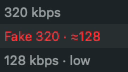
Finds the high-bitrate MP3s made from a low-bitrate copy, and the lossless files made from a lossy one.
writes nothing a whole crate
Key and energy
-
Key
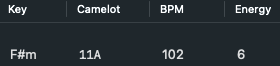
Detects the key and writes its Camelot code to the tag Serato reads.
tags only one track or a crate

-
Camelot wheel
Shows the keys that mix with the one you are in.
writes nothing

-
Energy
Rates every track from 1 to 10 and writes it where Serato can show it.
tags only a whole crate
-
Next Track
Ranks the tracks that mix best after the one you pick, by key, BPM and energy, and builds a set from them.
writes nothing until you save a set as a crate

-
Set Builder
Puts a set or a whole crate in the order that mixes best, for the energy shape you pick.
writes nothing until you save it as a crate

Tags and library
-
Tag grid
A crate’s tags in one table: type, fill down, find and replace, undo.
tags only a whole crate

-
Art, year and genre
Looks up missing covers, year and genre online.
tags only needs internet

-
Clean-up
Strips junk tags, scrubs promo text, fixes capitals, feat. credits and genre spellings, tidies names, and renames files from their tags.
tags only Strip Extras: MP3 only
Rename Files changes the file’s name
-
Smart Crate
Builds a Serato crate from rules, on your whole library.
writes one crate file into Serato’s folder

-
Request List
Looks up a client’s must-play list in your Serato library: what you have, what is close, what is missing. Keeps their do-not-play songs out, and prints a run sheet.
writes nothing until you save the ones you have as a crate

-
Duplicates
Finds the same recording across formats and bitrates, by its sound.
moves the extra copies to the Trash; Undo brings them back

-
Identify
Names untagged tracks by their sound, with Shazam.
tags only needs internet, no key

Backups, rekordbox and USB
-
Library backups
Copies your Serato library, crates and history every day and before every batch, on this Mac and each drive. Restore puts one back.
writes copies into a folder you pick

-
rekordbox
Takes your grids, hot cues, loops and keys from Serato to rekordbox and back, crates and playlists too.
tags only into Serato: tags and crates
to rekordbox: one XML file
-
USB for Pioneer DJ
Puts Serato crates on a USB stick for CDJs, XDJs and all-in-ones, with grids, hot cues A to H, loops, keys and waveforms.
writes to the stick nothing on your Mac changes

-
USB for Engine DJ
Puts Serato crates on a USB stick for Denon DJ, Numark and RANE gear that runs Engine DJ, with grids, hot cues, loops and keys.
writes to the stick nothing on your Mac changes

The whole crate, scored in one pass.
Drop a folder in. Every track is listed right away, and each row fills in as its track is analyzed, several tracks at once. The list sorts worst first, and one click writes every OK grid to Serato. The same scan can find each key, place hot cues and spot fake 320s. Hot cues already on a track stay where they are.
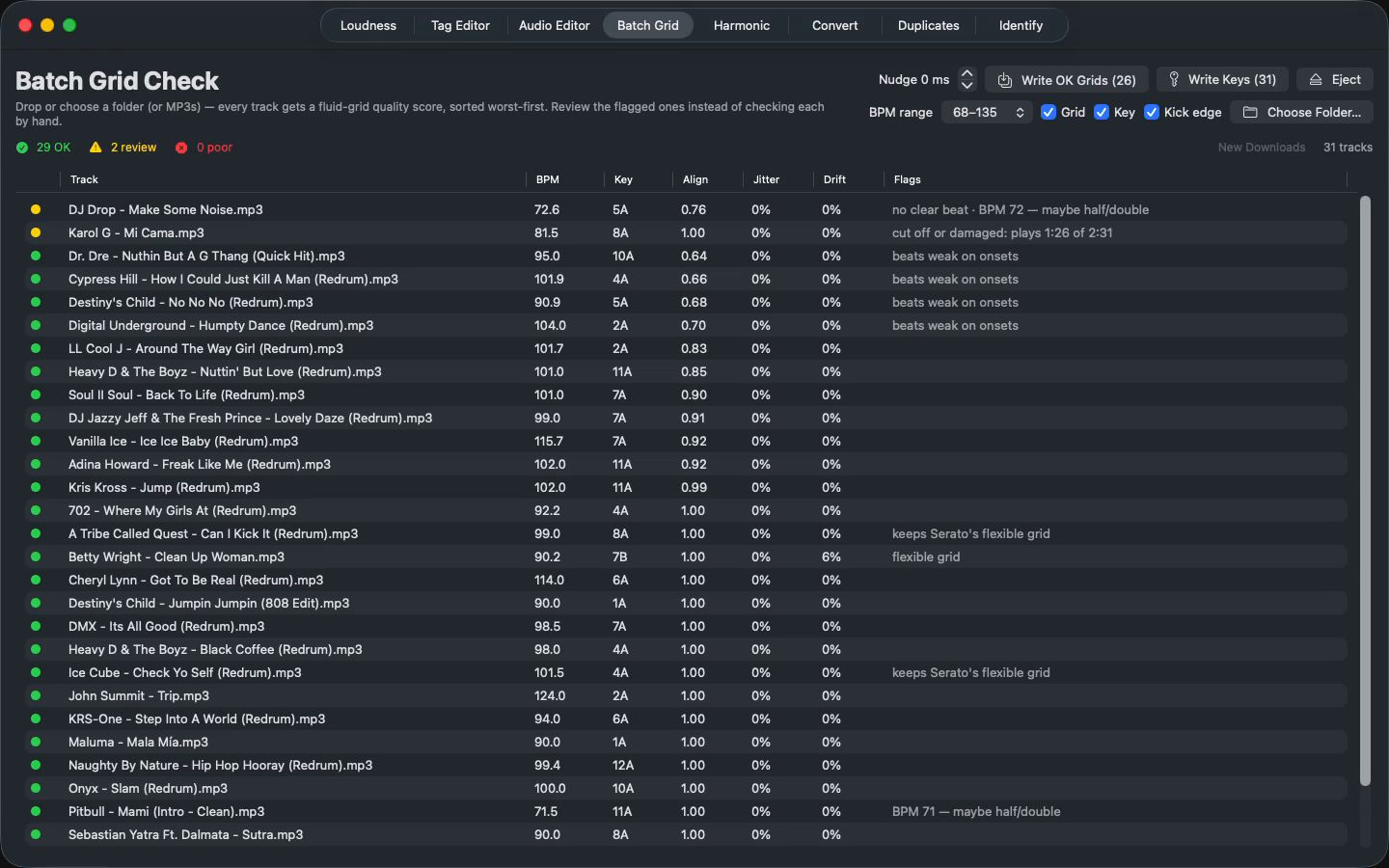
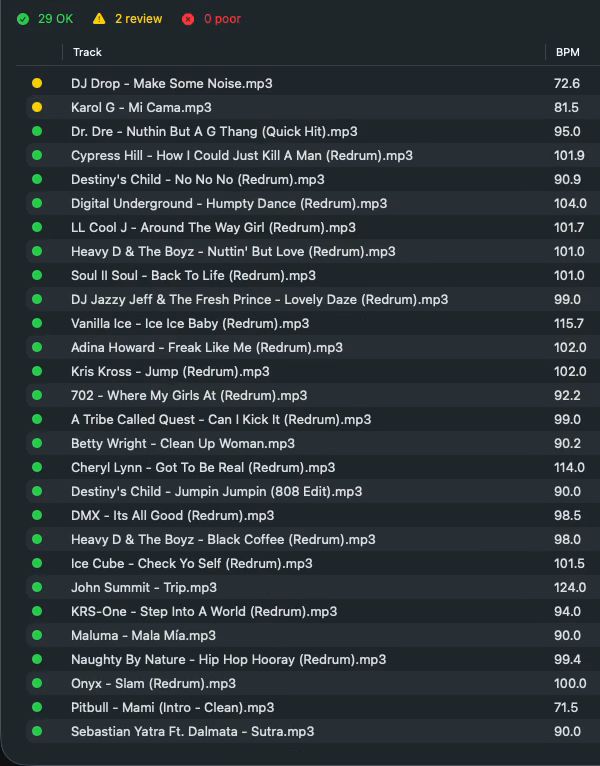
A folder of 31 tracks dropped into Batch Grid, in real time on a Mac Studio (M4 Max). Two rows end up marked for review: one file has no clear beat, the other is cut off.
- Align
- How tightly the grid sits on the beats.
- Jitter
- How much the beat spacing wobbles.
- Drift
- How far the tempo wanders across the track.
- Verdict
- OKreviewpoor

What the flags say
- no clear beat
- The file has no steady pulse to lay a grid on. A DJ drop, for one.
- cut off or damaged
- The file plays shorter than it says it is.
- flexible grid · tempo drifts 81.1–84.6 BPM
- The tempo drifts, as live playing speeds up and slows down, so the grid follows it. The flag gives the range, and the summary’s tempo drifts key lists only these tracks.
- keeps Serato’s flexible grid
- The grid already in the file fits better, so it stays.
The controls
- Write OK Grids
- Writes every grid marked OK into its file. Rows marked review or poor stay as they are. A track already in your Serato library shows its new grid after you remove it from Serato’s library (not from your drive) and add it again. Re-scan File Info is not enough for a grid.
- Kick edge
- Places each track’s lines on its own kick.
- Nudge
- Shifts every grid it writes, up to 60 ms either way.
- Write Keys
- Writes the Camelot key of every track in the folder. In Serato, Re-scan File Info shows it.
- Write Cues
- Writes the hot cues the scan placed, after a question that says what each name means. In Serato, Re-scan File Info shows them.
- Crate Uncued
- Saves the tracks with no hot cues or saved loops of their own as a Serato crate, to cue by hand. The scan finds them when Cues is on. Serato has to be closed.
- Undo
- The button at the top right of the window puts back the last write, whether grids, keys or cues.
- BPM range
- The same five ranges as in Serato’s analysis settings, from 58–115 to 98–195. A track outside the range comes out at half or double its tempo.
tags only · Serato can stay open, with these tracks off the decks
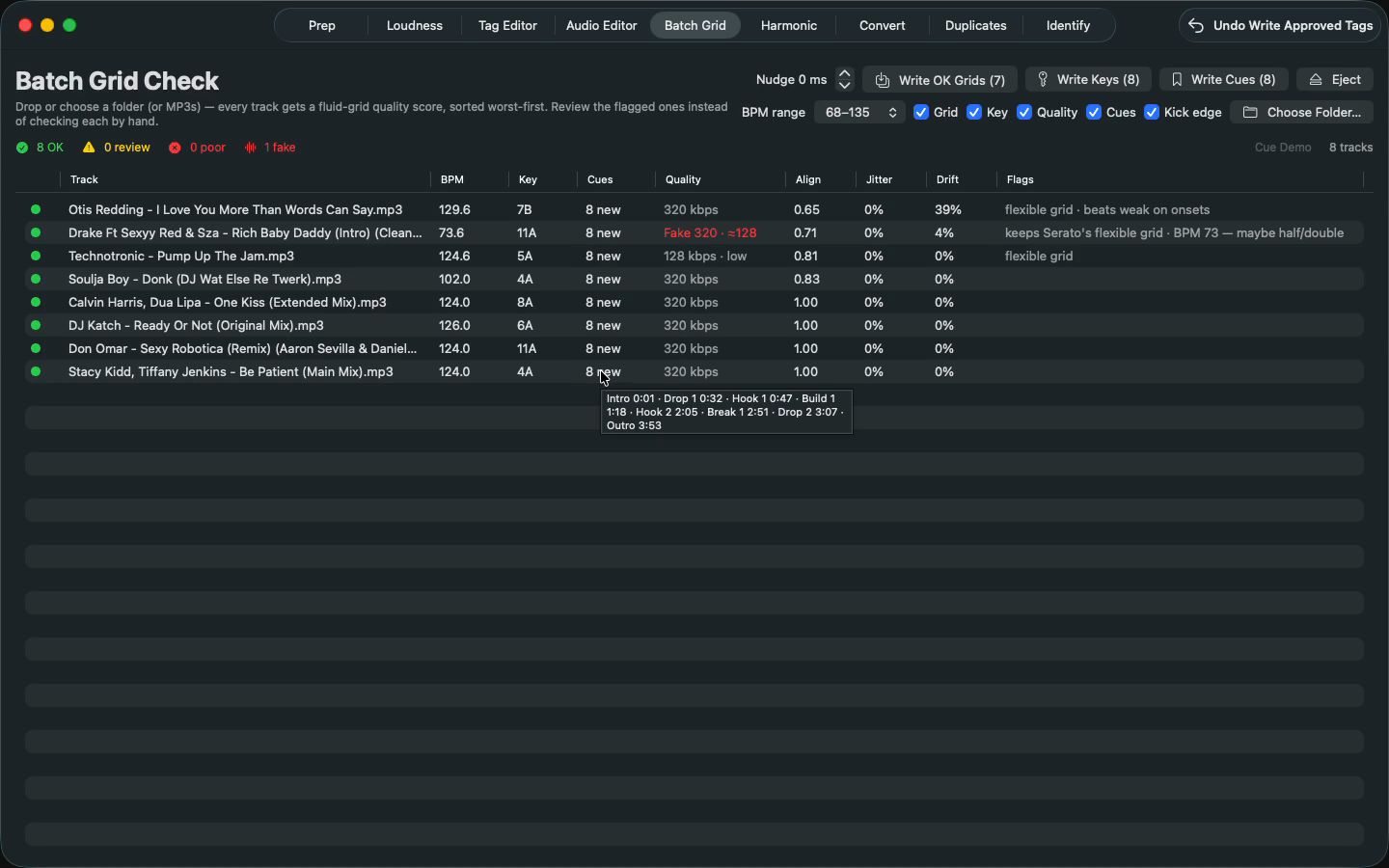
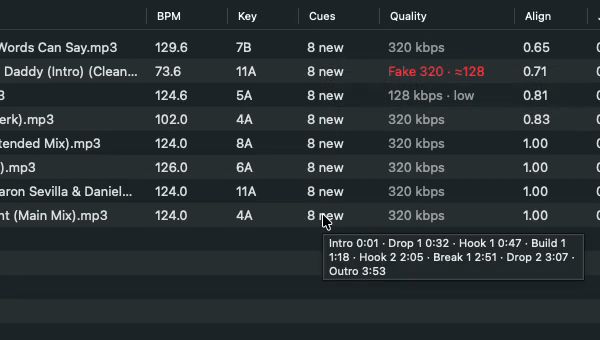
A folder of eight tracks dropped in with Cues and Quality ticked; the scan runs in real time. Every track gets eight cues, and the tooltips on two rows name each cue and its time. One file is flagged as a fake 320.
Hot cues in bulk
- Up to eight per track, each on the 1 of a bar where a phrase starts.
- Each is named, numbered and colored by what happens there: Intro, or Start when the track opens at full sound, Drop, Break, Build, Hook where a sung voice comes in, Vocal where a rapped or spoken voice comes in, Beat where the voice stops, Outro, or Bar N for another change.
- The Template key beside Cues opens the Cue Template: your own name and one of Serato’s colors for each kind, numbered or not, and 2 to 8 cues a track.
- A track with hot cues or saved loops of its own keeps them. A track whose grid is marked review or poor gets none.
- The cues sit on the scan’s grid, so write the grids too.
Fake 320s
- A fake 320 is a low-bitrate file saved again at 320 kbps. The higher bitrate does not bring the lost sound back.
- With Quality ticked, the scan finds where each file’s sound stops. The column says Fake, Suspect or low, and its tooltip says why.
- It changes nothing in the file. Get a flagged track again from a better source.
the check writes nothing · one file or a whole crate
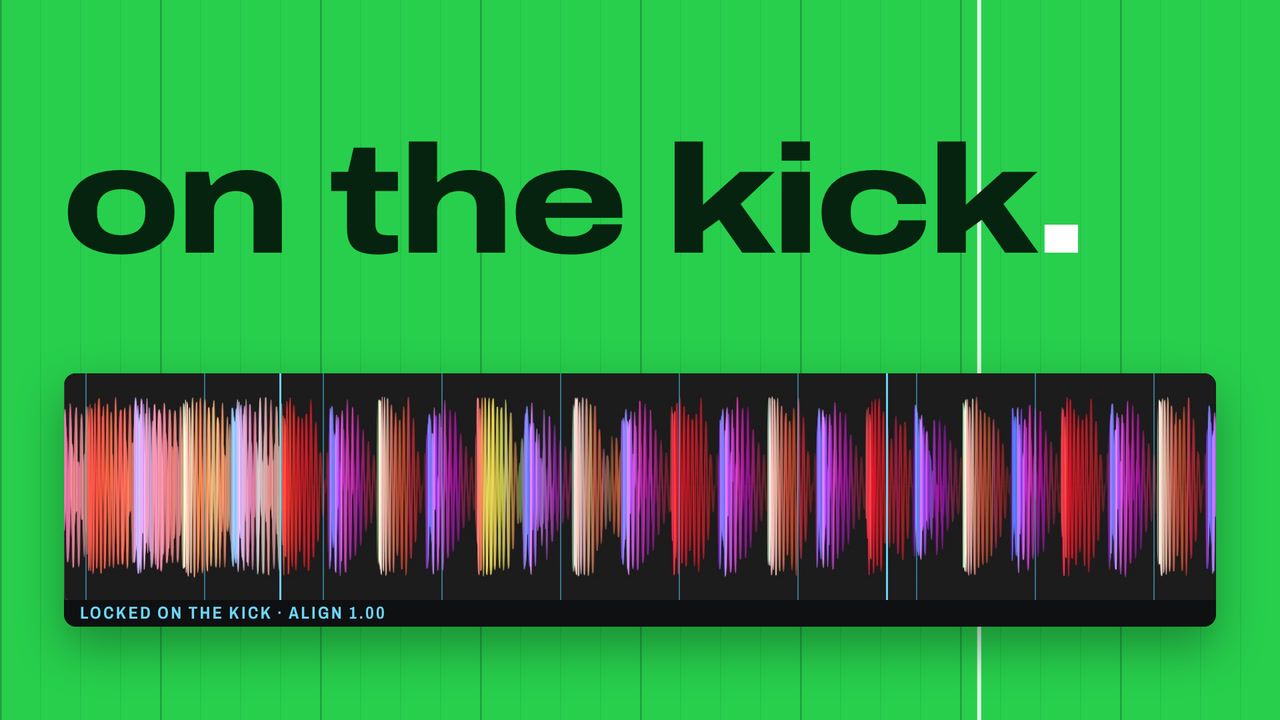
Tutorial · 1:29 · with sound
Batch Grid, start to finish
A folder scanned and sorted worst first, the BPM range and the fake-320 check, the good grids written, then keys and named hot cues, and the way back with Undo.
Transcript
Batch Grid checks the beatgrid of every track in a folder. Drop a folder in, or click Choose Folder. Every track is listed right away, and each row fills in as its track is analyzed, several at a time. Each track gets a dot. Green is OK. Yellow means take a look: maybe there’s no clear beat, or the file is cut off. Red is poor. When the scan ends, the list sorts worst first, so the problems are on top.
Pick the BPM range you use in Serato, and the folder is analyzed again by itself. The Quality column shows each MP3’s bit rate, and flags a fake 320: a low bit rate file that was saved again at 320.
When you’re happy, click Write OK Grids. Only the green rows are written, as beatgrid tags. No audio changes, and your hot cues stay put. Serato can stay open; just keep those tracks off the decks. If a track is already in your Serato library, remove it from the library, not from your drive, and add it again to see the new grid.
Write Keys puts each track’s key into its tags. And with Cues ticked, each track also gets up to eight named, colored hot cues on its phrase starts. Write Cues puts them in, and a track with cues of its own is left alone. Then choose Re-scan File Info in Serato. Changed your mind? The Undo button at the top right puts the last write back.
That gain knob you nudged up at 1 a.m. and forgot to reset?
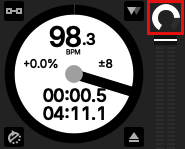
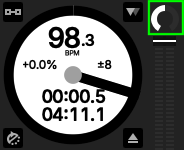
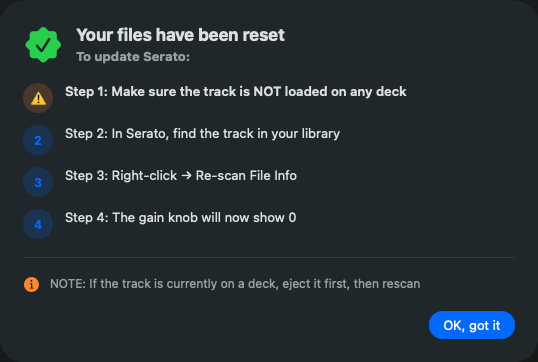
Serato saves it with the track. CrateEdit Pro zeroes the stored gain back to 0 dB, for one file or a whole crate, so nothing jumps out at you mid-set.
First of its kind. No other app does it.
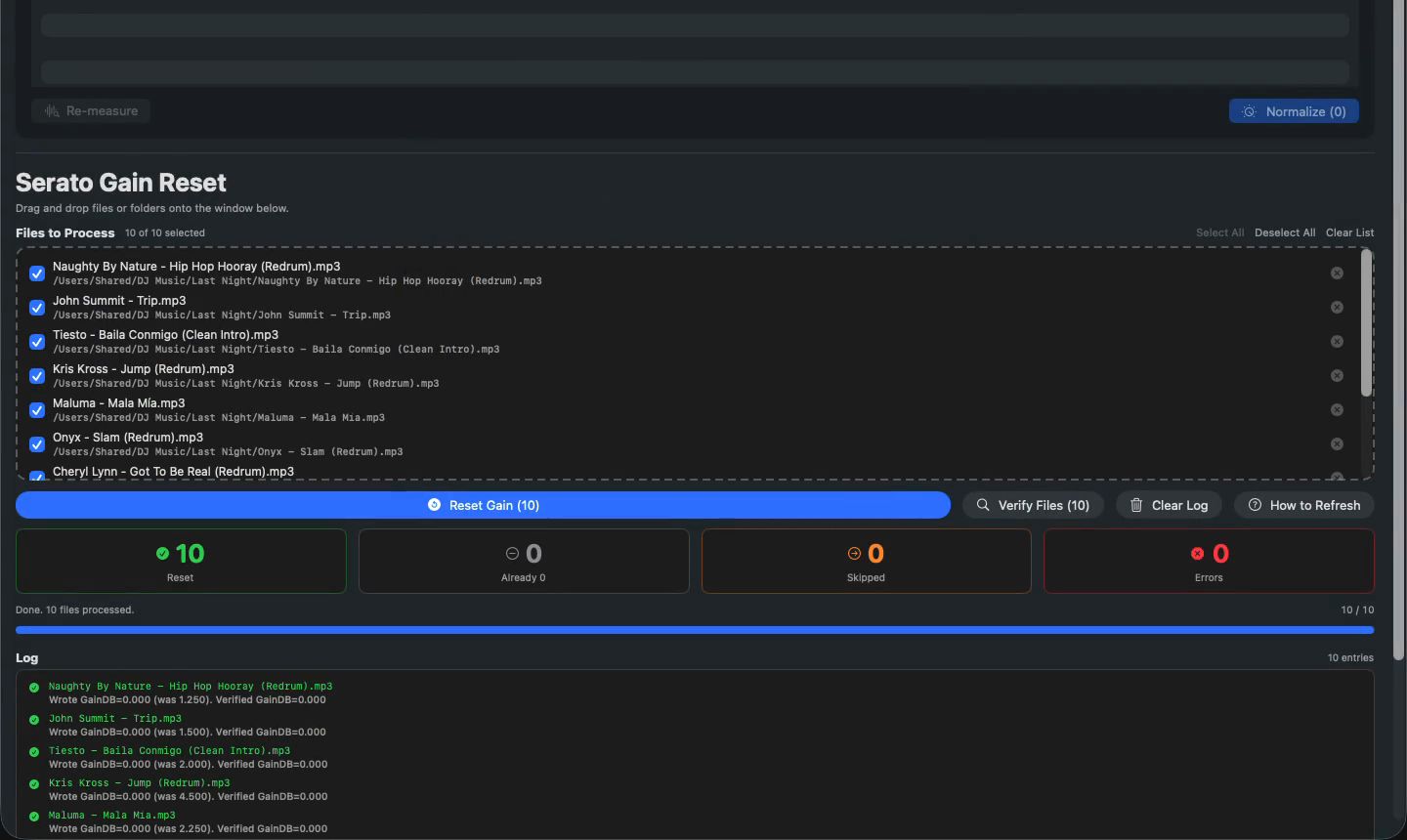
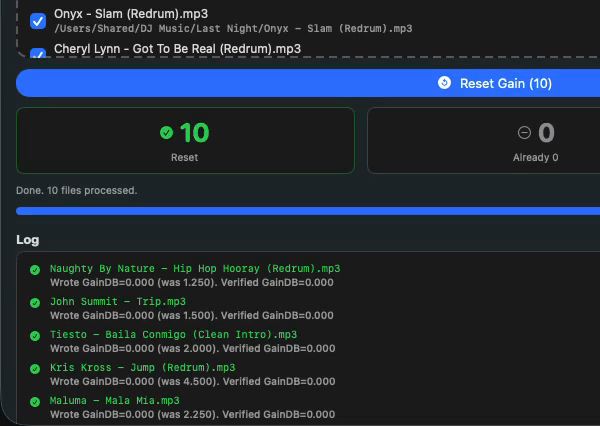
Ten tracks dropped in, one click, and the app reads each file back to check the gain is at 0 dB.
Good to know
- It works on MP3, WAV, AIFF, FLAC and M4A files and changes one stored value. The audio is not touched.
- Close Serato before you reset, and keep a backup of your library before any bulk change. That is the app’s own advice.
- The last step is yours: in Serato, right-click the tracks and choose Re-scan File Info.
- Verify Files reads the stored gain of every file without changing anything.
- The Undo button at the top right puts the stored gain back as it was.
tags only · one file or a whole crate
Tutorial · 0:54 · with sound
Gain Reset, start to finish
MP3s dropped on Gain Reset with Serato closed, the stored gain set back to zero, then Re-scan File Info in Serato. What changes, what doesn’t, and Undo. Filmed when Gain Reset took MP3s only; it now takes WAV, AIFF, FLAC and M4A too.
Transcript
Gain knobs all over the place? Reset them in one pass. Open the Loudness tab and drop your MP3s on Gain Reset. Close Serato before you reset. Click Reset Gain. CrateEdit Pro sets the gain value stored in each file back to zero. The audio isn’t touched, and your BPM stays as it is. Files that are already at zero are counted and left alone. Verify Files only reads your files, and changes nothing.
Then, in Serato, select the tracks, right-click, and choose Re-scan File Info. The gain knob shows zero. Changed your mind? The Undo button at the top right puts the gain back. Gain Reset works on MP3 files; FLAC and M4A files are skipped.
Six jobs on every track, in one go.
Crate Prep gives every track in a folder (MP3, WAV, AIFF, FLAC or M4A) its beat grid, key, hot cues, clean tags, energy rating and gain reset, in that order, in one go. Check first can look the new tracks over before anything is written, and Add to a crate puts them all in one crate at the end. Turn off any step you don’t want. One click on Undo puts the whole prep back; a crate it added to stays as it is.
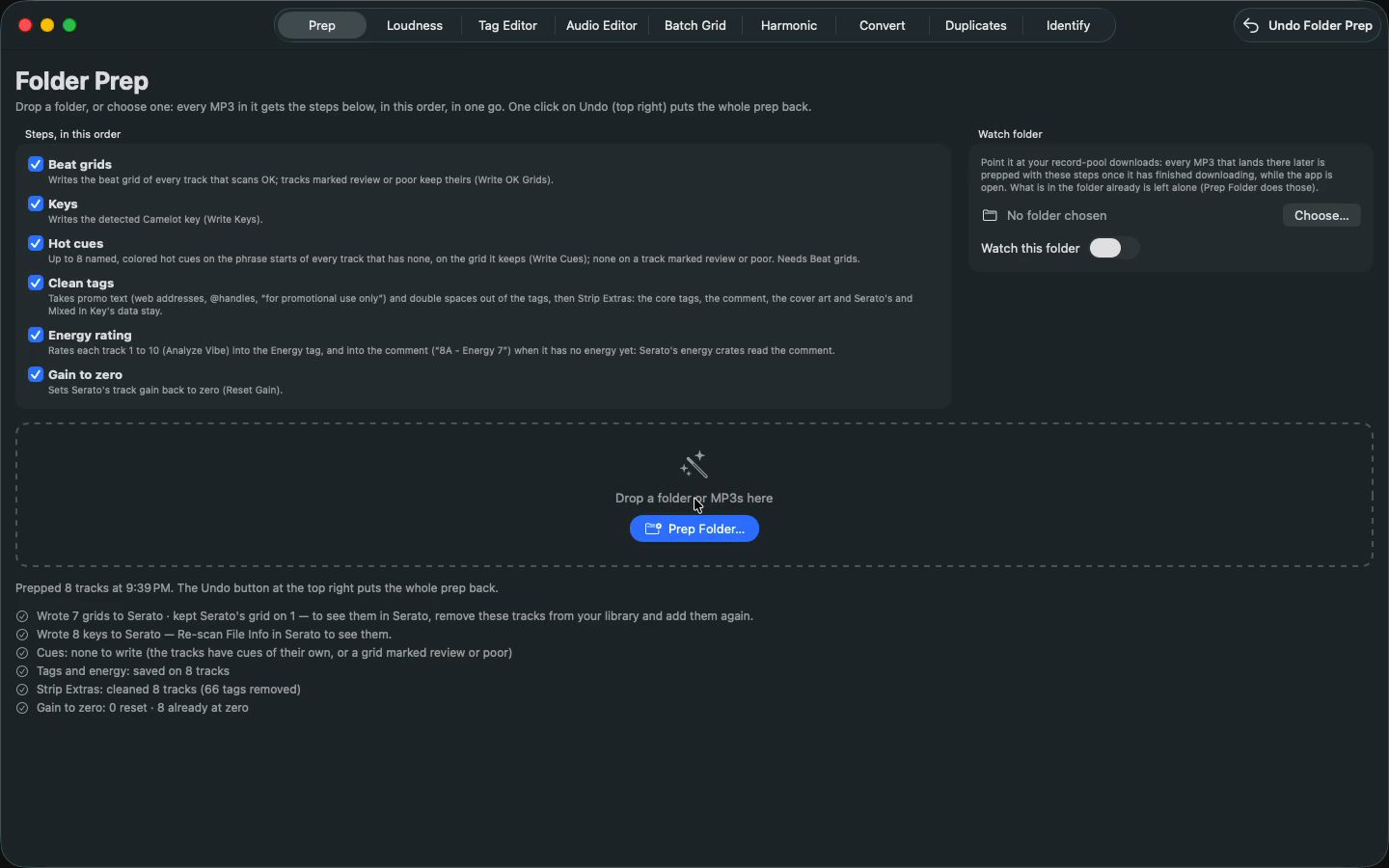
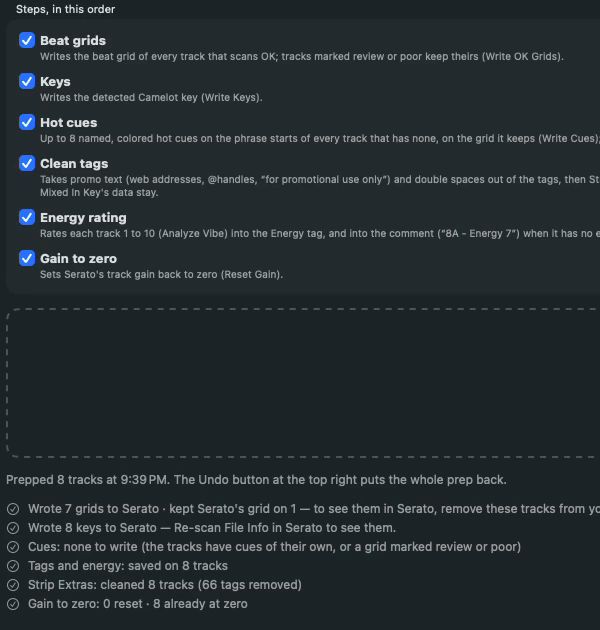
Eight tracks from a record-pool folder dropped on the Prep tab, in real time on a Mac Studio (M4 Max). They already had hot cues of their own and their gain was at 0 dB, so those two steps changed nothing.
The steps, in order
- Check first: changes nothing. It lists the tracks already in your Serato library or another version of one, fake or low-bitrate copies, and tracks with no title, artist or genre. The list shows under the steps when the prep is done.
- Beat grids: writes the grid of every track that scans OK. A track marked review or poor keeps its own.
- Keys: writes the detected Camelot key, in place of the key already in the file.
- Hot cues: up to eight on every track that has none, named and colored by the Cue Template, except a track marked review or poor. It needs Beat grids.
- Clean tags: takes promo text and double spaces out of the tags, then runs Strip Extras on the MP3s.
- Energy rating: 1 to 10, into the energy tag, and into the comment when it has none yet.
- Gain to zero: sets Serato’s stored gain back to 0 dB.
- Add to a crate: puts every track of the prep in one Serato crate, New Music unless you pick another. What is in it stays, and no track goes in twice. While Serato is open the tracks wait, and go in once it is closed.
Watch folder
- Point it at your record-pool downloads. While the app is open, it looks every 30 seconds and preps each new track once it has finished downloading.
- What was in the folder before is left alone. Prep Folder does those.
- With Check first on, its note says how many new tracks there are to look at.
- Left out on purpose: Normalize, the editor and the Converter change the audio, and Duplicates and Identify need your choice.
tags only · close Serato before you prep tracks it already has
The few that need a look, fixed on the waveform.
Open a flagged track in the Audio Editor. Zoom until every kick has its line, move the grid by hand if it needs it, and set the cues while you are there.
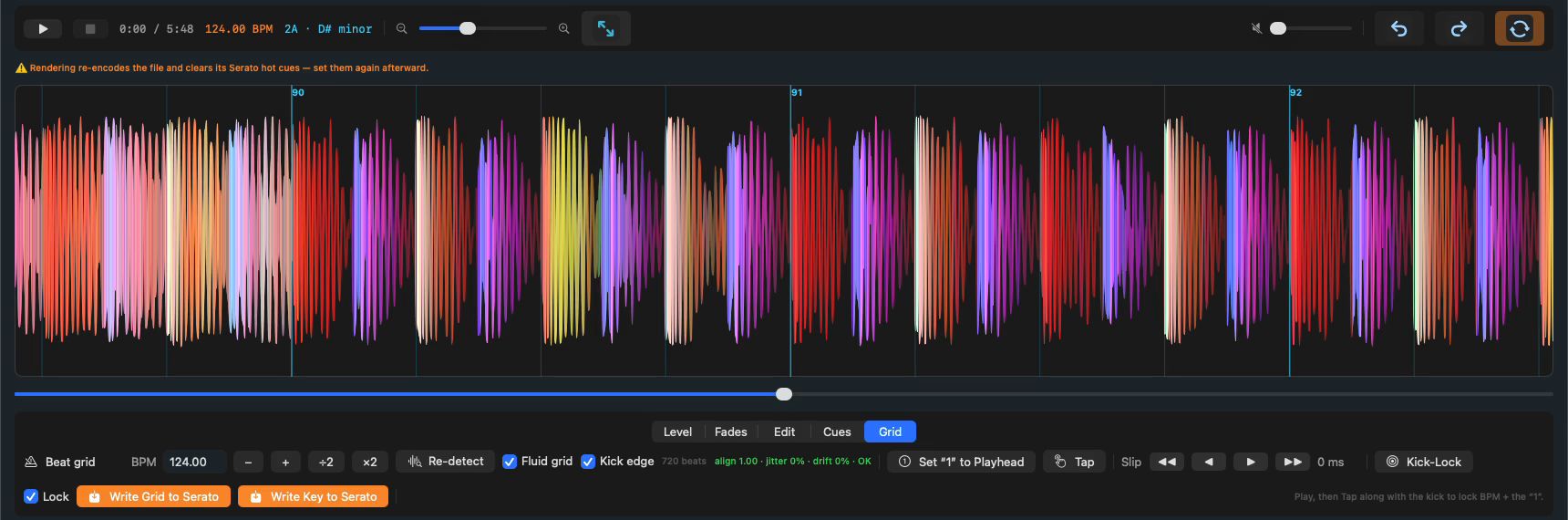
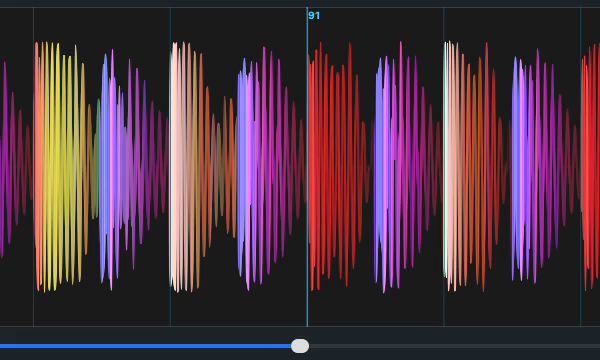
The Grid tab of the Audio Editor, zooming from the whole track down to single kicks. The numbered lines are bars.
- Tap
- Play, then tap along with the kick to lock the BPM and the 1.
- Slip
- Moves the whole grid earlier or later in small steps.
- Re-detect
- Analyzes the track again, in the BPM range you set.
- Kick-Lock
- Separates the drums and snaps the grid to the kick. Kick-heavy tracks tighten most; syncopated funk is left alone.

Hot cues
- Up to eight per track, set on the waveform, each with a name and a color.
- Auto Cues places them in one click, on the track’s phrase starts and the grid you see, named and colored by the Cue Template. Nothing is written until Save cues.
- They are saved as Serato hot cues, one track at a time. For a whole folder, use Batch Grid’s auto cues.
- If a track carries Mixed In Key’s cue points, From Energy loads them as hot cues.
Cue loops
- Right-click a cue, choose Loop and a length from 1 to 32 bars.
- It is saved as a Serato cue loop; the length comes from the track’s BPM.
- Checked in Serato DJ Pro 5.
tags only · Serato can stay open, with the track off the decks. Re-scan File Info shows new cues. For a new grid, remove the track from your Serato library and add it again.
Level it, trim it, convert it.
Normalize and the editor change the audio itself. Normalize keeps Serato’s cues, loops and grid; rendering an edit clears them, so edit before you cue. The Converter makes a new MP3 and leaves the original alone.

Normalize
- One target for the crate: Club −9, DJ −10, Hi-fi −12, Streaming −14 LUFS, or your own. Matched on the drop, the loudest 30 seconds, or on the whole track.
- An MP3 turned down is lossless: only each frame’s gain value changes, in 1.5 dB steps. Turned up too, when the true peak has room. Otherwise it is re-encoded at 320 kbps through a true-peak limiter (−1 dBTP) and checked.
- WAV and AIFF are rewritten in place. FLAC and M4A get a new file in their own format, and FLAC and Apple Lossless stay lossless.
- A track the limiter would only squash to get louder is left as it is, and says so. A track with a wide dynamic range can end under the target.
- True peak and clips for every track before you start. Serato’s cues, loops and beatgrid stay right, and its Auto Gain moves with the change.
- In place, the original goes to the Trash. Or write copies into a folder and leave the originals as they are.
changes the audio · whole crate
Loudness meter
- Load one track and meter it in real time.
- Momentary, short-term and integrated LUFS, true peak and a VU needle.
- A graph of the last 30 seconds against a target line you drag into place, and a spectrum.
writes nothing · one track
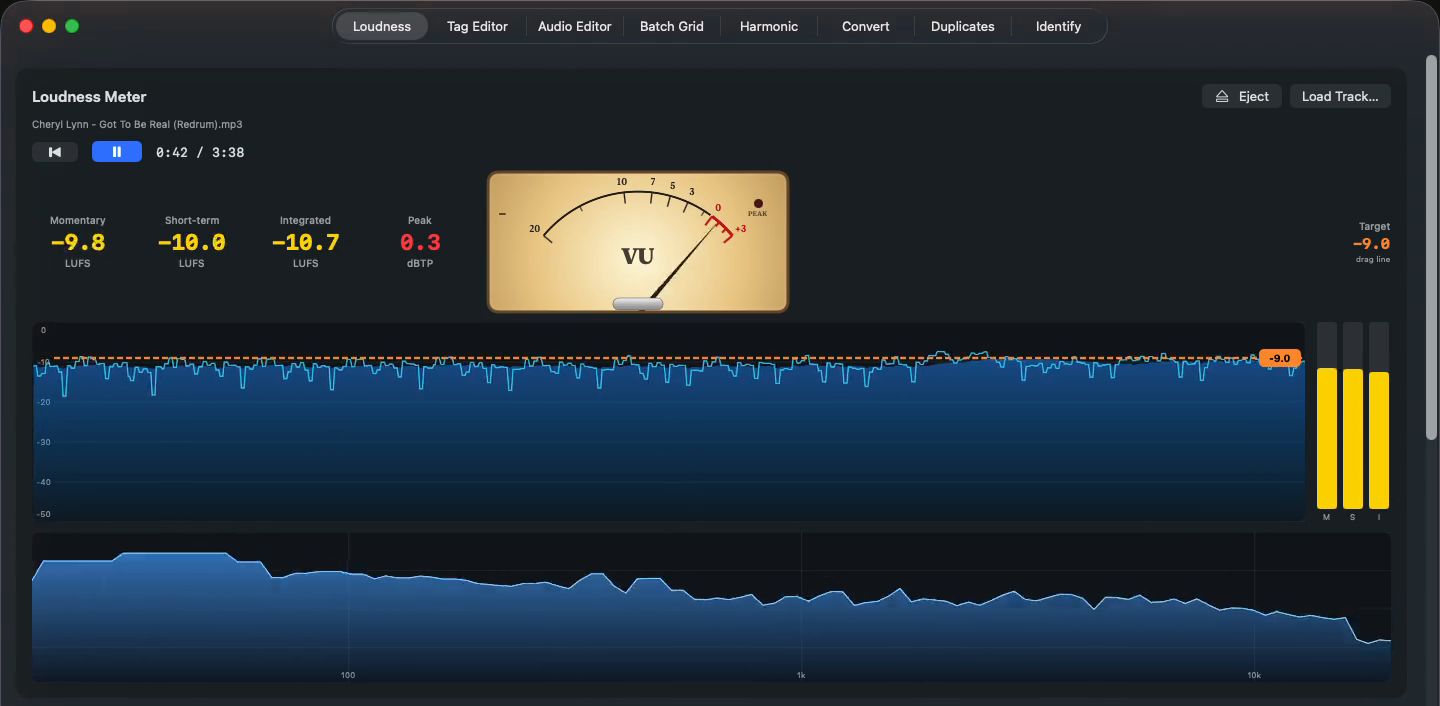
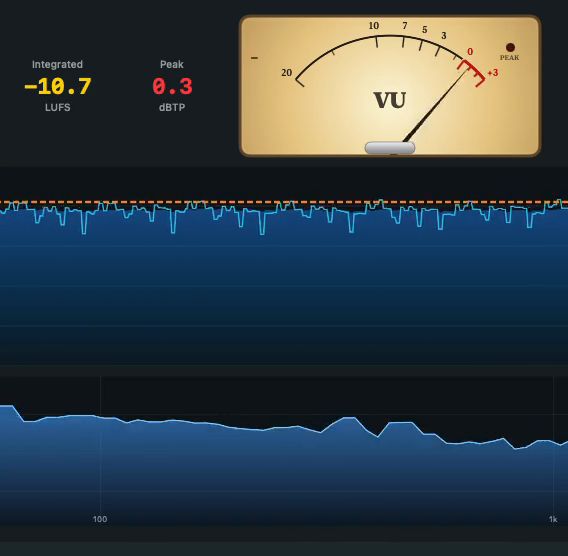
A track playing in the Loudness Meter. The orange line is the target.

Trim, fade, level
- Edit: mark a selection, delete it or crop to it.
- Fades: drag a fade in and a fade out on the waveform, or type the seconds.
- Level: set a region’s gain, or normalize the peak.
- Undo and redo until you render. Rendering writes the track again in its own format, sends the original to the Trash and removes the track’s Serato cues, beatgrid and gain.
changes the audio · one track
Converter
- WAV, AIFF, FLAC, M4A/AAC, ALAC and CAF in. A 320 kbps MP3 out, next to the original.
- The original stays. An MP3 that already exists is never overwritten.
- From FLAC and M4A the title, artist, album, genre, year, BPM and cover come along. From WAV and AIFF, the cover.
makes a new MP3 · files or folders
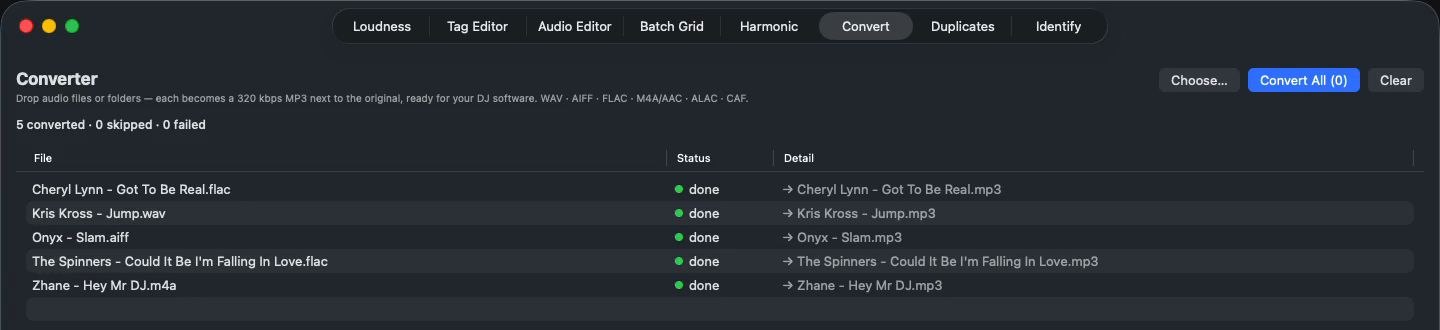
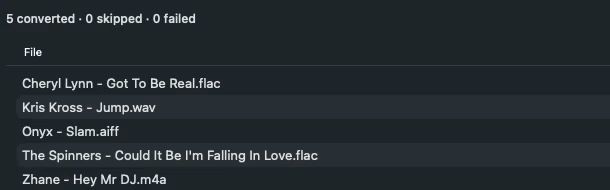
A FLAC, a WAV, an AIFF, another FLAC and an M4A, each converted to MP3. Waits are cut.
Know what mixes before you load it.
The key goes into the tag Serato reads, as a Camelot code. The wheel shows what goes with it, Next Track ranks the tracks to play after it, and Set Builder puts a whole crate in the order that mixes best.
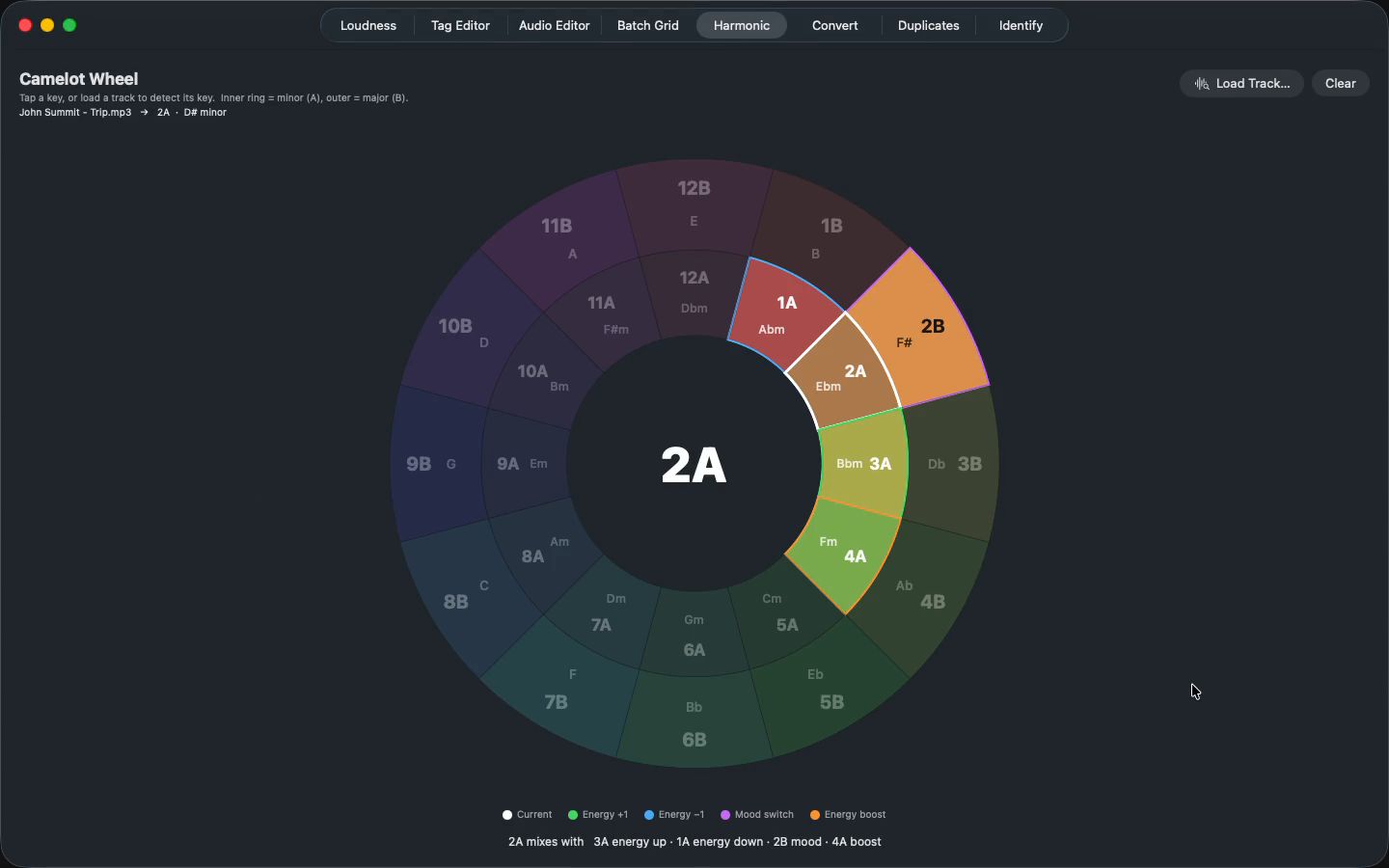
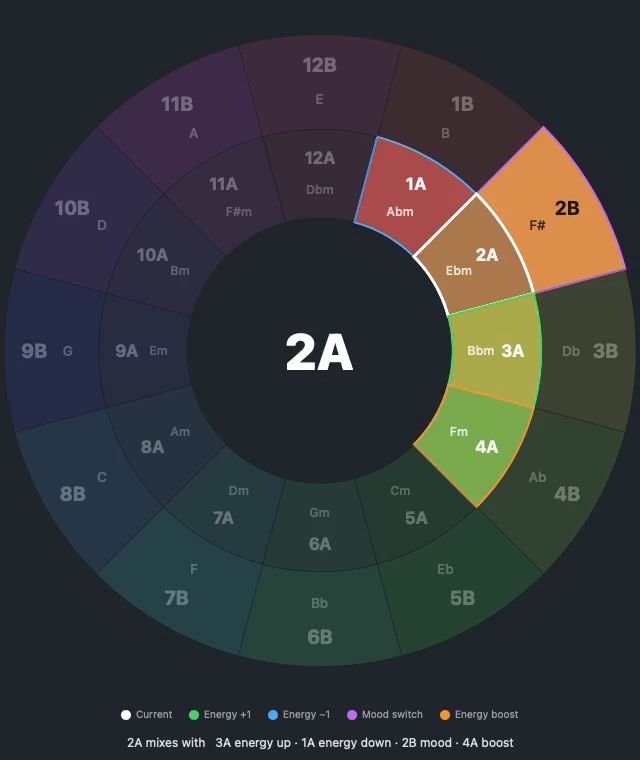
A track dropped on the wheel, filmed before Next Track joined the tab. Its key comes up as 2A, and the keys that mix with it light up.
Key
- Write Keys in Batch Grid does a whole folder. Write Key to Serato does the track in the editor.
- On the wheel: one step up or down in energy, the mood switch, the diagonal, the energy boost (+2) and the semitone lift (+7).
- In the Tag Editor, pick a track and the keys that mix with it are tinted in the Camelot column.
tags only · in Serato, Re-scan File Info afterward
Energy
- Analyze Vibe rates every track in the list from 1 to 10, on your Mac.
- Save All writes the number to the energy tag and, if the comment has none yet, into the comment, like “8A - Energy 7”. Serato shows the comment.
- Tracks under 5 seconds or over 60 minutes get no rating.
tags only · whole crate
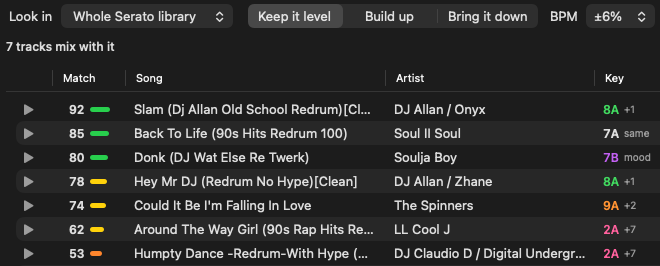
Next Track
- Pick the track you are mixing from: search your Serato library, load or drop a track on the wheel, or tap a key.
- Every track that mixes gets a score out of 100. The key counts most, then the BPM, then the energy. Half and double time count, and the pitch a track needs shows beside its BPM.
- Keep it level, Build up or Bring it down sets where the energy goes. The BPM range runs from ±3 to ±16%, and Harmonic keys only hides the clashes.
- Look in your whole Serato library or one crate. The energy comes from the comment, as CrateEdit Pro and Mixed In Key write it. The play button on each row plays a preview.
The set
- Double-click a track to add it to the set and mix on from it. Each track in the set is colored by its move from the one before.
- Drag tracks into another order. Auto-fill grows the set to 5, 10, 15, 20 or 30 tracks, each the best next of the one before, and says when nothing more mixes on.
- Save as Crate writes the set as a Serato crate, in its order. Close Serato first; the crate is there when it starts.
writes nothing · Save as Crate writes one crate file
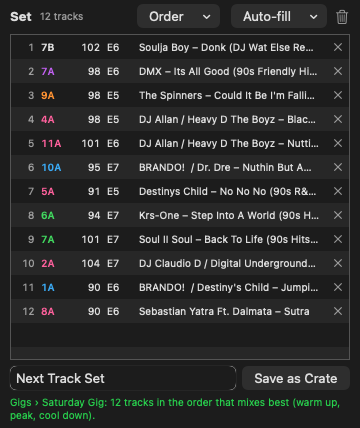
Set Builder
- Order puts the set, or any crate, in the order that mixes best: keys round the wheel, tempos close, and the energy following the shape you pick.
- Four shapes: Warm up, peak, cool down; Build up; Keep it level; Bring it down.
- Every song once, even when the crate holds it twice. The crate itself stays as it is; Save as Crate keeps the new order.
writes nothing · Save as Crate writes one crate file
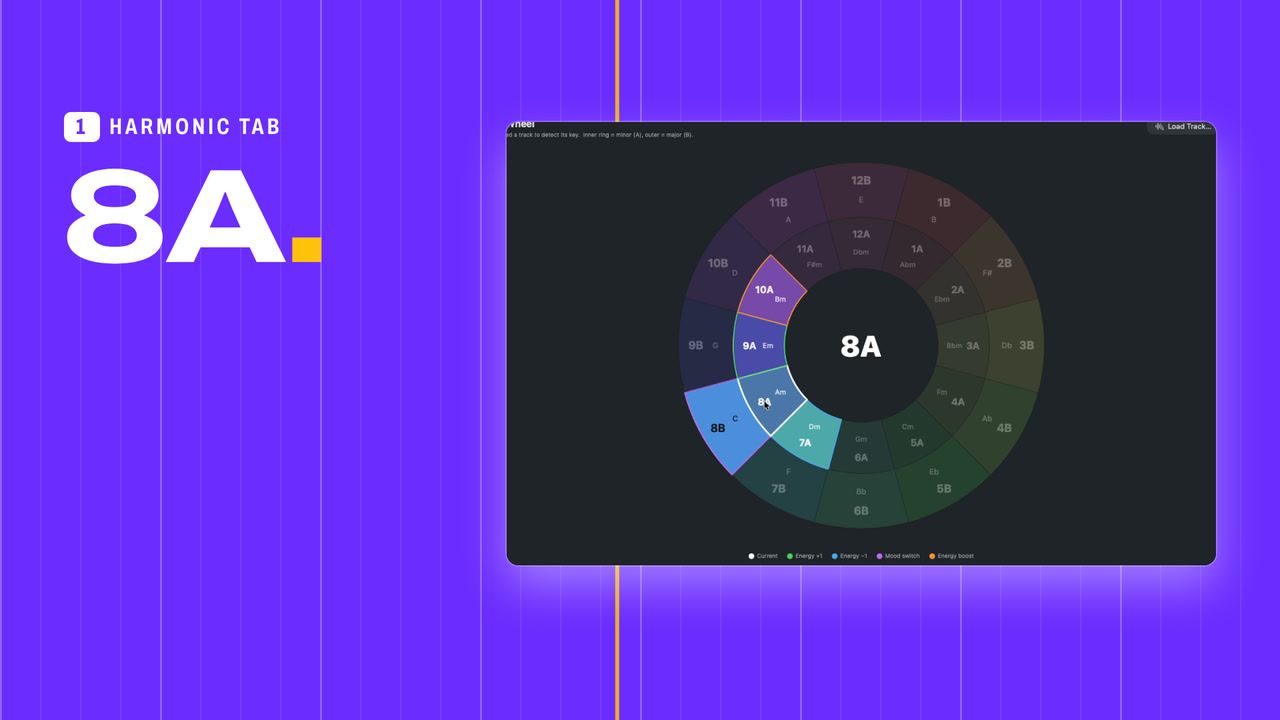
Tutorial · 0:53 · with sound
Key and the Camelot wheel
Tap a key or load a track to see what mixes, write Camelot keys for a whole folder in Batch Grid or for one track in the Audio Editor, and see the matches in the Tag Editor.
Transcript
Mixing in key starts with the Camelot wheel. Open the Harmonic tab. Tap a key, or click Load Track to detect a track’s key from its audio. The keys that mix well light up, each with what it does to the energy or the mood.
To put keys into your files, use Batch Grid: tick Key, scan a folder, then click Write Keys. The Camelot key goes into each file’s key tag. It’s metadata only, so the audio isn’t touched. For a single track, open it in the Audio Editor and click Write Key to Serato. Then, in Serato, right-click the tracks and choose Re-scan File Info, and the keys show in the Key column.
And in the Tag Editor, select one track, and the tracks that mix with it are tinted in the Camelot column.
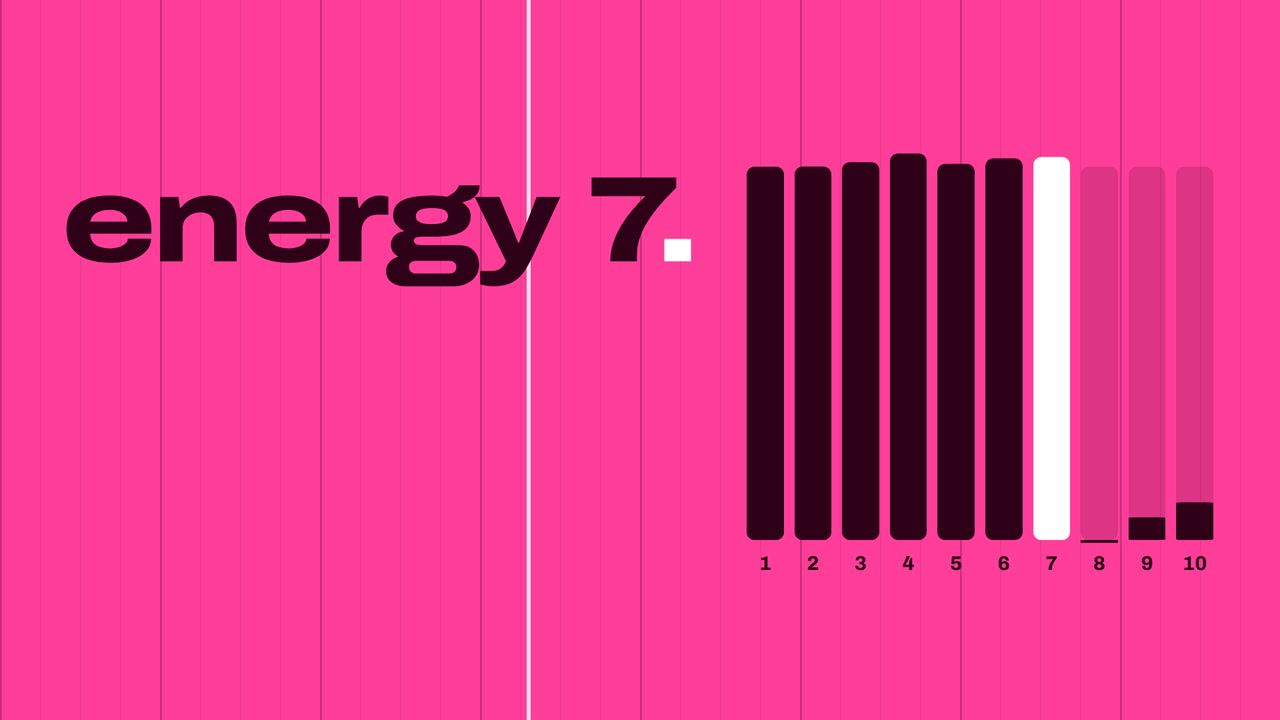
Tutorial · 0:50 · with sound
Energy, 1 to 10
Analyze Vibe rates every track from its audio, Save All writes the rating to the energy tag and the comment, and a Smart Crate builds a set by energy.
Transcript
How hard does a track hit? Analyze Vibe rates it from one to ten. Open the Tag Editor, add your MP3s, and click Analyze Vibe. Each track’s energy is worked out from its audio, right on your Mac, and fills the Energy column. Nothing is written until you click Save All. Then the rating goes into the file’s energy tag, and into the comment, like “8A - Energy 7”, if the comment doesn’t have an energy yet.
Serato has no energy field, but it shows the comment: right-click your tracks and choose Re-scan File Info. To build a set by energy, use Smart Crate: add an Energy rule, write the crate, and restart Serato to see it. Tracks under five seconds or over an hour get no rating.
A crate’s tags in one table.
Drop tracks or a folder and each file becomes a row. Type in a cell, fill down, find and replace, paste a cover. None of it is written until you press Save All.


Art, year and genre
- Covers come from Apple Music and the Cover Art Archive. Year and genre come with the same search.
- It needs an internet connection. No account and no key.
Smart Crate
- Builds a Serato crate from rules such as BPM, key and energy, on your whole Serato library or on the tracks in the table. You see the matches before you save.
- It writes one crate file into Serato’s folder, replacing a crate of the same name. Restart Serato to see it.

Clean Up Tags
- Capitals: ALL CAPS and all-lowercase titles, artists and albums become Title Case. DJ, MC, R&B and LL Cool J keep their capitals.
- feat.: every ft. and featuring becomes feat., in brackets in a title.
- Genre names: each genre gets one spelling, the one your tracks use most.
- You see every change first and can untick any. Apply puts them in the table, and Save All writes them.
Tidy Names
- Site names and promo text: web addresses, @handles and promo lines come out of titles, artists, albums and genres. Pool edit labels like (Intro - Clean) stay.
- Leftovers in names: underscores become spaces, a track number in front of a title goes, and so do doubled spaces and a dash left at either end. 99 Problems keeps its 99.
- Artist in the title: “Artist - Song” in the title keeps the song. With no artist, it moves into Artist, also the other way round (Song (Remix) - Artist).
- (Original Mix) comes off titles. Other mixes stay.

Request List
- Paste a request list, or open a text or playlist file. Artist - Title, Title by Artist, numbered or bulleted lines and a playlist’s file paths all work.
- Each song is looked up in your Serato library: in it, close (another version, or the same title by another artist), or missing.
- Save the ones you have as a crate, in the list’s order. Copy the missing ones to go and find them.
- Do Not Play: the songs the client doesn’t want go in a box of their own. They never go into the crate. A song on both lists is marked Conflict and stays out until you ask the client.
- Print Run Sheet: the list in the client’s order, with what you have (its BPM and key), what is close, what is missing and what not to play. Print it, or save it as a PDF.
writes nothing · Save as Crate writes one crate file
Strip Extras, Scrub Promo, Rename Files
- Strip Extras keeps the core tags, the cover, and Serato’s and Mixed In Key’s data, and removes the rest: web links, lyrics, store and uploader tags. MP3 only. Quit Serato first. It acts at once, and the Undo button at the top right puts the tags back.
- Scrub Promo removes web addresses, @handles and promo lines.
- Rename Files names each file from its tags, at once, and keeps its extension. Serato shows it as missing until you re-import the folder.
tags only, except Rename Files, Smart Crate and the Request List’s crate
Two of the same. One with no name.
Both tools listen to the audio instead of trusting the file name.
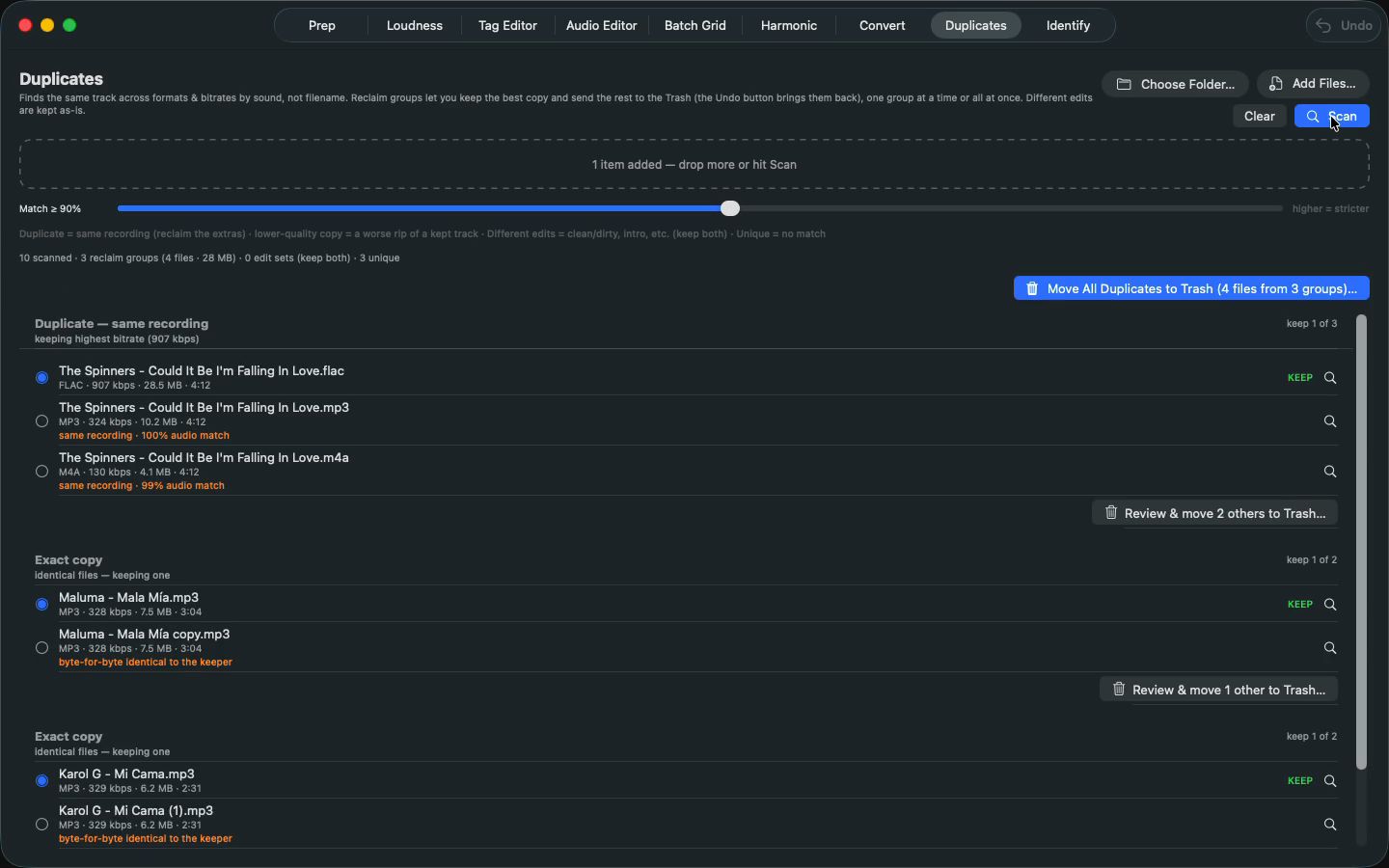
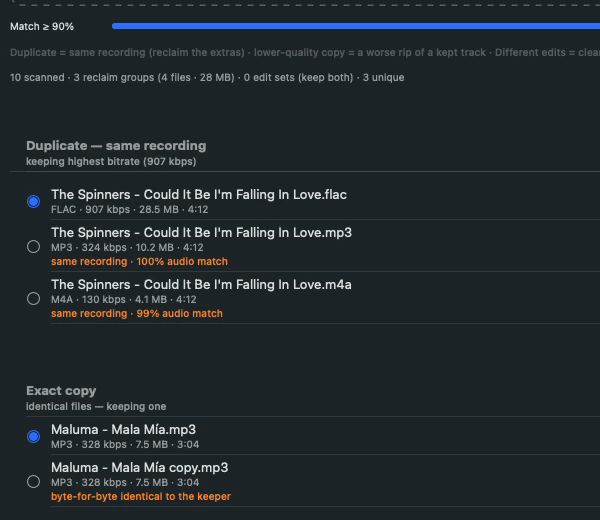
Ten files scanned: one song as FLAC, MP3 and M4A, and two exact copies. Move All sends the four extra copies to the Trash, Undo brings them back, and a second scan finds them again. Waits are cut.
Duplicates
- It fingerprints the audio on your Mac and groups the files that are the same recording, across formats and bitrates.
- You keep the best copy, and the others go to the Trash, one group at a time or all at once. You see every file first and can untick any.
- Nothing is deleted. The Undo button at the top right brings them back while they are in the Trash.
- Different edits of a song, clean and dirty or intro and extended, are left alone.
moves files to the Trash · MP3, FLAC, M4A, WAV, AIFF and more
Identify
- Shazam recognizes an untagged track by its sound, and the title, artist, album and year come from MusicBrainz. You tick the fields to write.
- A strong match ticks the blank fields for you. A loose match, or one whose length differs from the file (a mix, another edit), waits for you to confirm.
- It needs an internet connection. No key and no account. If you have your own AcoustID key or AudD token, they are tried when Shazam has nothing to fill in.
- What leaves your Mac: a sound signature of 12 seconds of the track (two if the first finds nothing) to Apple’s Shazam service, and the song’s ISRC code to MusicBrainz. With your own keys, also a fingerprint and the track’s length to AcoustID, and about 24 seconds of audio to AudD.
tags only · MP3, WAV, AIFF, FLAC, M4A
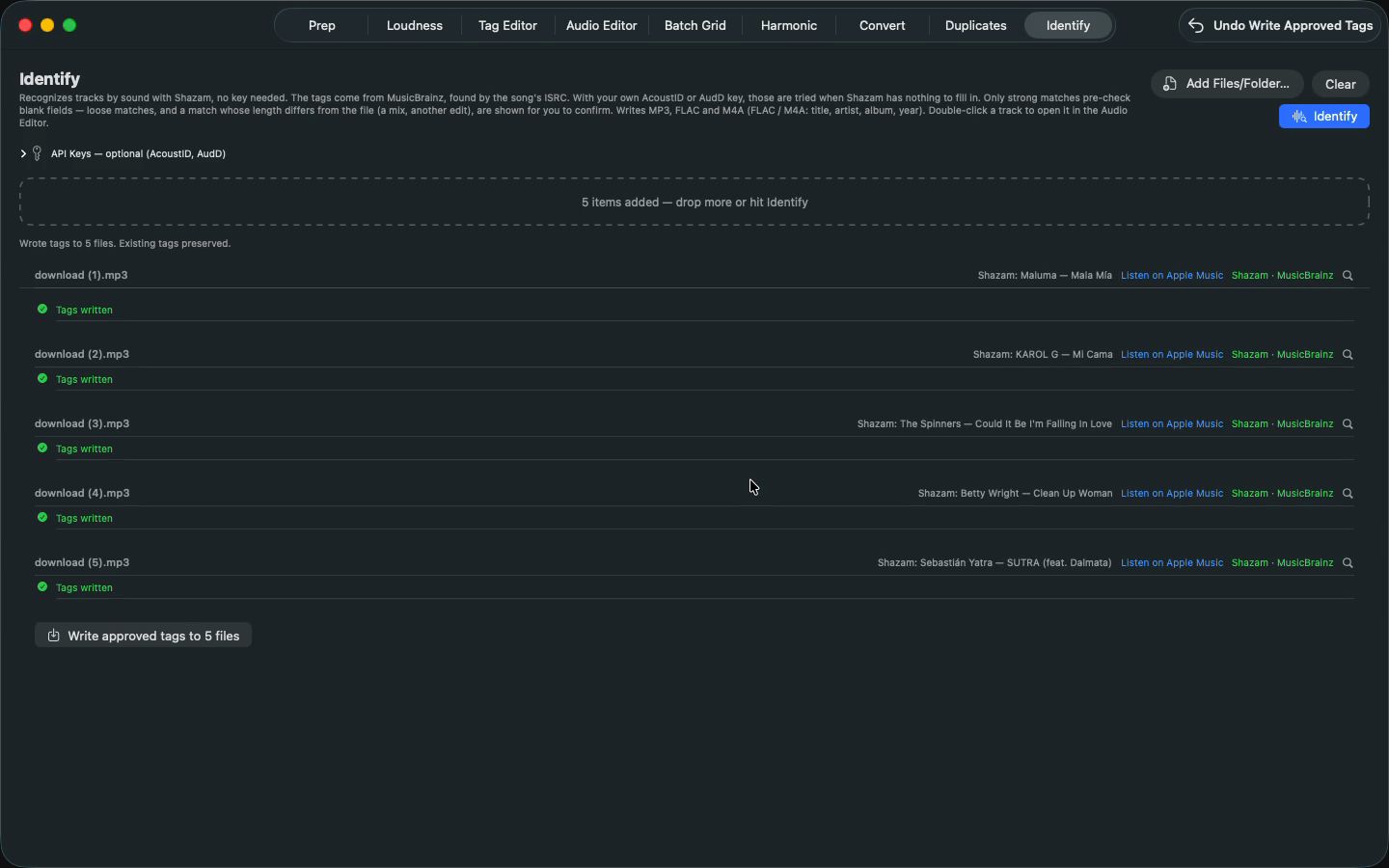
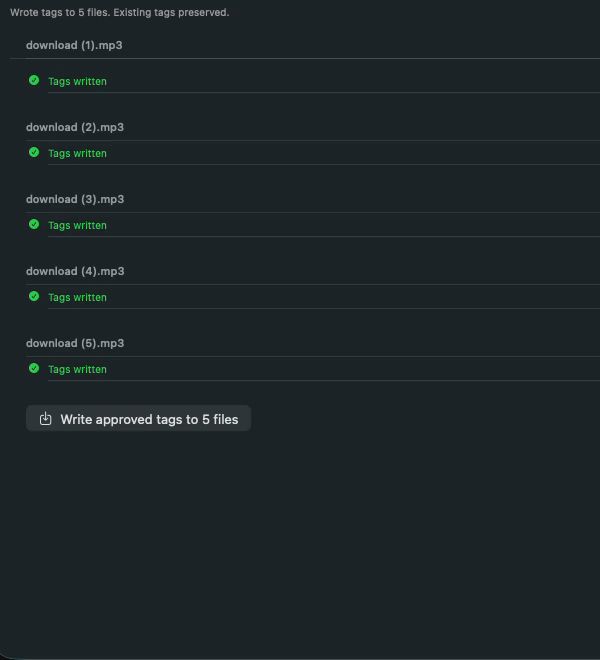
Five files named “download (1).mp3” to “download (5).mp3”, with every tag removed. Shazam knows all five, MusicBrainz fills in the title, artist, album and year, and the tags are written. Waits are cut.
Your crates on a USB stick, for the club’s players.
Tick Serato crates, pick a drive and export. Each crate becomes a playlist on the stick, with its tracks’ beat grids, hot cues, loops, keys and artwork, the way the players read them. No rekordbox or Engine DJ needed, and nothing on your Mac changes.

For Pioneer DJ
- For CDJs, XDJs and all-in-ones that read a rekordbox USB, the newest ones too. The stick gets both of rekordbox’s libraries and each track’s analysis files, written the way rekordbox writes them: the Device Library for every player, and OneLibrary for the CDJ-3000X, XDJ-AZ, OPUS-QUAD and OMNIS-DUO. rekordbox 7 reads it with all eight hot cues in color.
- Beat grids, hot cues A to H with Serato’s names and colors, cue loops as hot loops, saved loops as memory loops, key, artwork, and the waveforms the players draw.
- Crates become playlists. A crate with sub-crates becomes a folder.
- Sticks formatted FAT32 (MS-DOS) or Mac OS Extended. Only some newer players read exFAT.
For Engine DJ
- For Denon DJ, Numark and RANE gear that runs Engine DJ. The stick gets Engine DJ’s own library, checked against the one Engine DJ 5.1 makes.
- Beat grids, hot cues with Serato’s names and colors, saved loops, key, artwork and the overview waveform.
- Crates become playlists, sub-crates inside their parent.
- Sticks formatted exFAT or FAT32 (MS-DOS).
Export again
- After changes, export again. Only new or changed music is copied, and the playlists are brought up to date.
- A library already on the stick is updated, not replaced, and a copy of it is saved on your Mac first. What rekordbox or Engine DJ put on that stick stays.
- Each export puts Serato’s grids and cues on the stick again: cues set on a player for those tracks are replaced.
writes to the USB stick · nothing on your Mac changes
Good to know
- The grids go across as you set them in Serato. Nothing is analyzed again.
- OneLibrary is made from the stick’s Device Library the way rekordbox 7 makes it, checked table for table against rekordbox 7’s own. A stick where rekordbox put tracks in OneLibrary only is left as it is, so none of them is lost.
- Eject the stick before you unplug it. The tab has an Eject button.
Your prep, in rekordbox too. Your library, backed up.
The grids, cues and keys you prep can go to rekordbox, and come back from it. And a copy of your Serato library goes into a folder you pick, every day and before every batch.
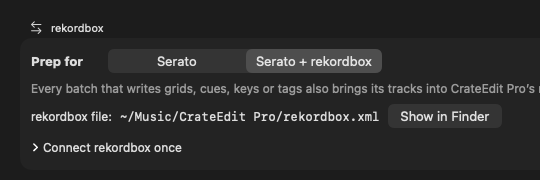
Serato to rekordbox
- Prep for Serato + rekordbox, and every batch that writes grids, cues, keys or tags also brings its tracks into one rekordbox file, as its Latest batch playlist. Connect rekordbox to that file once; the tab shows how.
- Or tick Serato crates and click Export to rekordbox. Each crate becomes a playlist, with its tracks’ grids, hot cues, cue loops, saved loops and keys, timed for rekordbox. Save as M3U8 writes plain playlists instead.
- Your files still get Serato’s data as always.
rekordbox to Serato
- Export your collection from rekordbox as XML, choose that file, and tick the playlists. Their beat grids, hot cues, loops and keys go into your files, and the playlists become crates.
- Memory cues fill the free hot-cue pads, and memory loops become saved loops.
- Quit Serato first. Undo puts the files back; the crates stay.
tags only · grids, cues and keys travel for MP3, WAV, AIFF, FLAC and M4A
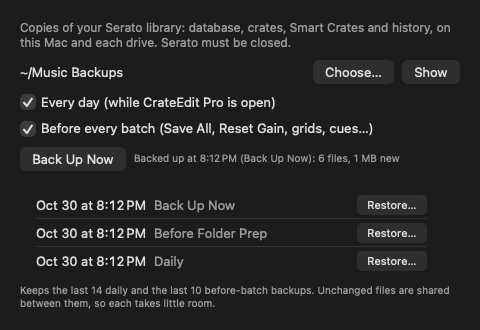
Library backups
- Pick a folder on any drive, in Settings under Backups. Each backup holds your Serato database, crates, Smart Crates and history, from this Mac and each drive. Your music files are not copied.
- One a day while the app is open, one before every batch (Crate Prep, Save All, Reset Gain, grids, cues), and one whenever you click Back Up Now. Nothing new is made when nothing has changed.
- Backups are made only while Serato is closed. The daily one waits for it; the one before a batch is skipped, and the app says so.
- The last 14 daily and the last 10 before-batch backups are kept. Files that haven’t changed are shared between them, so each takes little room.
- Restore puts a backup back. It first backs up the library as it is now, so you can go back again.
writes copies · into the folder you pick
The small print, in normal size.
- Mac
- macOS 13 or later on Apple Silicon.
Kick-Lock needs macOS 14 or later. - Serato
- Serato DJ Pro 4 and 5. rekordbox through its XML file, both ways. USB sticks for Pioneer DJ and Engine DJ players.
- Files
- MP3, WAV, AIFF, FLAC and M4A (AAC and Apple Lossless) in every tool; Strip Extras is MP3 only. The converter takes WAV, AIFF, FLAC, M4A/AAC, ALAC and CAF.
- Length
- Tracks up to 60 minutes. The converter has no limit.
- Install
- One app. Nothing else to install.
- Internet
- To activate the license and to confirm it at least once every 7 days. Also for update checks, Identify, and the art, year and genre look-ups.
- License
- One Mac at a time. You can move it to another Mac yourself.
- Backup
- Normalize in place and the editor replace the file and send the original to the Trash; Normalize can write copies instead. The Undo button puts back the last batch of tag changes, renames and moves to the Trash, for 7 days. The library backups copy your Serato library, not your music, so keep a backup of anything you can’t replace.
$79. Once.
Out now. Pay once, and your license key and the download link come by email right away.
No spam. Only news about CrateEdit Pro, and you can unsubscribe any time: just reply “unsubscribe” to any email. We never share your address.
- One-time purchase. Not a subscription.
- 15-day money-back guarantee, no questions asked.
- One-device license you can move to a new Mac anytime.
- Free updates.
- The same jobs bought separately run about $927 the first year. See the comparison