 CrateEdit Pro
Name and color your hot cues automatically
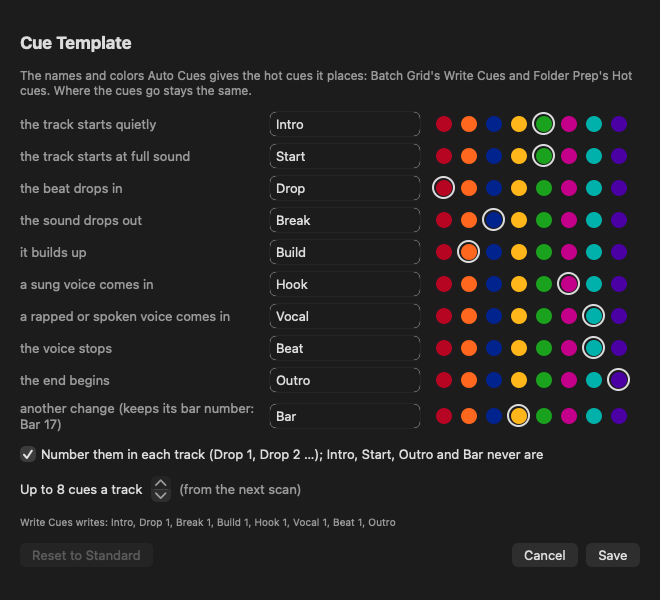
Setting eight cues by hand on every new track is the slowest part of prep. Auto cues find where each phrase starts and put a hot cue there, on the 1 of the bar, named for what happens: the intro, the drop, the break. Your Cue Template decides what each one is called and what color it gets, so every track in your library reads the same way.
Where the cues go
Each cue sits on the 1 of a bar where a phrase starts, on the track’s beatgrid, and is named for what happens there:
- Intro
- The track starts quietly. Start, when it starts at full sound.
- Drop
- The beat drops in.
- Break
- The sound drops out.
- Build
- It builds up.
- Hook
- A sung voice comes in.
- Vocal
- A rapped or spoken voice comes in.
- Beat
- The voice stops.
- Outro
- The end begins.
- Bar 17
- Another change, named for its bar.
A track that already has hot cues or saved loops of its own keeps them. A track whose grid is marked review or poor gets none, because its cues would sit on a grid that may be wrong.
Make your own Cue Template
Open it from Template… beside Cues in Batch Grid, from Cue Template… beside Hot cues in Crate Prep, or from Template… beside Auto Cues in the Audio Editor. It’s the same template everywhere.
- Give each kind your own name, Mix In instead of Intro, say, and one of Serato’s colors.
- Number them or not: Drop 1, Drop 2 and so on. Intro, Start, Outro and Bar never get a number. Give two kinds the same name and they’re numbered together.
- Choose how many cues a track gets, from 2 to 8. The count applies from the next scan; names and colors apply at once.
- The line at the bottom shows what Write Cues will write. Reset to Standard brings back the names and colors above.
Cue a whole crate
- In Batch Grid, tick Grid and Cues, then drop a folder or click Choose Folder. The cues are placed as each track is scanned; nothing is written yet.
- Click Write OK Grids first. The cues sit on the scan’s grid, so the grid should be in the file too.
- Click Write Cues. A short question says what each name means; confirm it.
- In Serato, select the tracks, right-click and choose Re-scan File Info. Changed your mind? The Undo button at the top right puts the last write back.
Crate Prep does the same in one go with its Hot cues step, which needs Beat grids ticked. See turn your downloads folder into a DJ inbox.
Cue one track
Open the track in the Audio Editor and go to its cues. Auto Cues places them in one click, on the grid you see on screen, named and colored by your template. If the pads already have cues, it asks before replacing them. Move any cue you like, then click Save cues: nothing is written to the file before that.
Grids first. Auto Cues needs the track’s beatgrid, and every cue lands on it. Tracks marked for review are the ones to fix by hand; fix drifting beatgrids in batch shows how.