 CrateEdit Pro
How to back up your Serato library, and get it back
Your music files are only half of your library. The crates you built, your history and Serato’s database live in a few small folders, and without them your drive is just a pile of files. Here’s what to back up, how often, and how to get it back.
What Serato keeps, and where
- A folder named
_Serato_in your Music folder holds Serato’s database, your crates, Smart Crates and history, and its settings. - Each drive with music on it has a
_Serato_folder of its own, for the tracks on that drive. - Serato DJ Pro 4 and 5 also keep a library database in your user Library folder, under Application Support.
These folders are small, but they’re the work of years. A drive that dies, a crash while Serato is writing, or a batch tool that changes what you didn’t want can damage them. A backup from this morning turns any of that into a two-minute fix.
Set up daily backups
- Open Settings (⌘,) and click Backups.
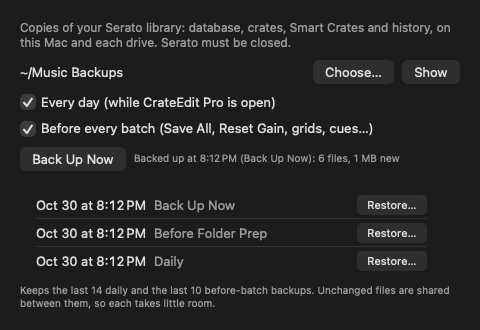
- Click Choose… and pick a folder. Any drive works; a second drive is best. It can’t be inside one of Serato’s own folders.
- Leave Every day and Before every batch ticked.
- Quit Serato and click Back Up Now for the first backup.
What happens after that
- One a day while CrateEdit Pro is open: it checks when the app starts, every hour, and a few seconds after Serato quits.
- One before every batch that writes to your files: Crate Prep, Save All, Reset Gain, grids, cues.
- Only while Serato is closed, because Serato keeps its database open while it runs. The daily backup waits for it; the one before a batch is skipped, and the app tells you.
- Nothing new when nothing changed. A file that hasn’t changed since the last backup is shared with it instead of copied again, so each backup takes little room. A drive that can’t share files that way, such as one formatted exFAT, gets full copies.
- The last 14 daily backups and the last 10 made before a batch are kept; older ones are removed.
Restore a backup
- Quit Serato.
- In Settings, Backups, click Restore… beside the backup you want, and confirm.
- The app first backs up your library as it is now, so you can always go back. Then it puts the backup’s files in place, on this Mac and on each drive that’s connected. A drive that isn’t connected is skipped, and named.
- Open Serato. Your crates and history are as they were.
What a backup leaves out
Your music files aren’t copied: back those up with Time Machine or a second drive. Serato’s logs, recordings and its own backup files are left out too, along with any audio or zip files in its folders.
Backups run while CrateEdit Pro is open. If you go a week without opening it, the next daily backup is made when you do.