 CrateEdit Pro
Fix drifting beatgrids in batch
The grid lines up at the intro, then by the breakdown the markers are sliding off the kick. Here’s why grids drift, how to find the bad ones without checking every track, and how to lock them so they stick.
Why grids drift in the first place
Most auto-gridders assume one fixed BPM for the entire track. Plenty of music doesn’t cooperate: older records, live takes, edits, anything played by hand speeds up and slows down. A single rigid grid can’t follow that, so it slowly walks off the beat: perfect at the start, sliding by the end.
The half-time / double-time trap
Sometimes the detector locks onto 70 when the track is really 140, or the other way around. The beat spacing looks fine, but the downbeat and phrasing land in the wrong place. The tell: a BPM that reads as exactly half or double what you’d expect for the genre.
Don’t eyeball every track: score them
You’re not going to check thousands of grids by hand. Score the crate instead: how tightly beats land on the actual onsets, how much the beat-to-beat spacing wobbles, and how far the tempo drifts across the track. Sort worst-first and you’re reviewing the flagged tracks, not the whole folder.
Batch Grid, start to finish. A folder scanned and sorted worst first, the BPM range and the fake-320 check, the good grids written, then keys and named hot cues, and the way back with Undo.
Transcript
Batch Grid checks the beatgrid of every track in a folder. Drop a folder in, or click Choose Folder. Every track is listed right away, and each row fills in as its track is analyzed, several at a time. Each track gets a dot. Green is OK. Yellow means take a look: maybe there’s no clear beat, or the file is cut off. Red is poor. When the scan ends, the list sorts worst first, so the problems are on top.
Pick the BPM range you use in Serato, and the folder is analyzed again by itself. The Quality column shows each MP3’s bit rate, and flags a fake 320: a low bit rate file that was saved again at 320.
When you’re happy, click Write OK Grids. Only the green rows are written, as beatgrid tags. No audio changes, and your hot cues stay put. Serato can stay open; just keep those tracks off the decks. If a track is already in your Serato library, remove it from the library, not from your drive, and add it again to see the new grid.
Write Keys puts each track’s key into its tags. And with Cues ticked, each track also gets up to eight named, colored hot cues on its phrase starts. Write Cues puts them in, and a track with cues of its own is left alone. Then choose Re-scan File Info in Serato. Changed your mind? The Undo button at the top right puts the last write back.
Fixing a drifter
For a track that genuinely drifts, a variable (fluid) grid that follows the tempo beats a rigid one hands down. For a half/double error, halve or double the BPM and reset the downbeat. If it’s just sitting a hair early or late, nudge the whole grid a few milliseconds.
Lock it so Serato keeps it
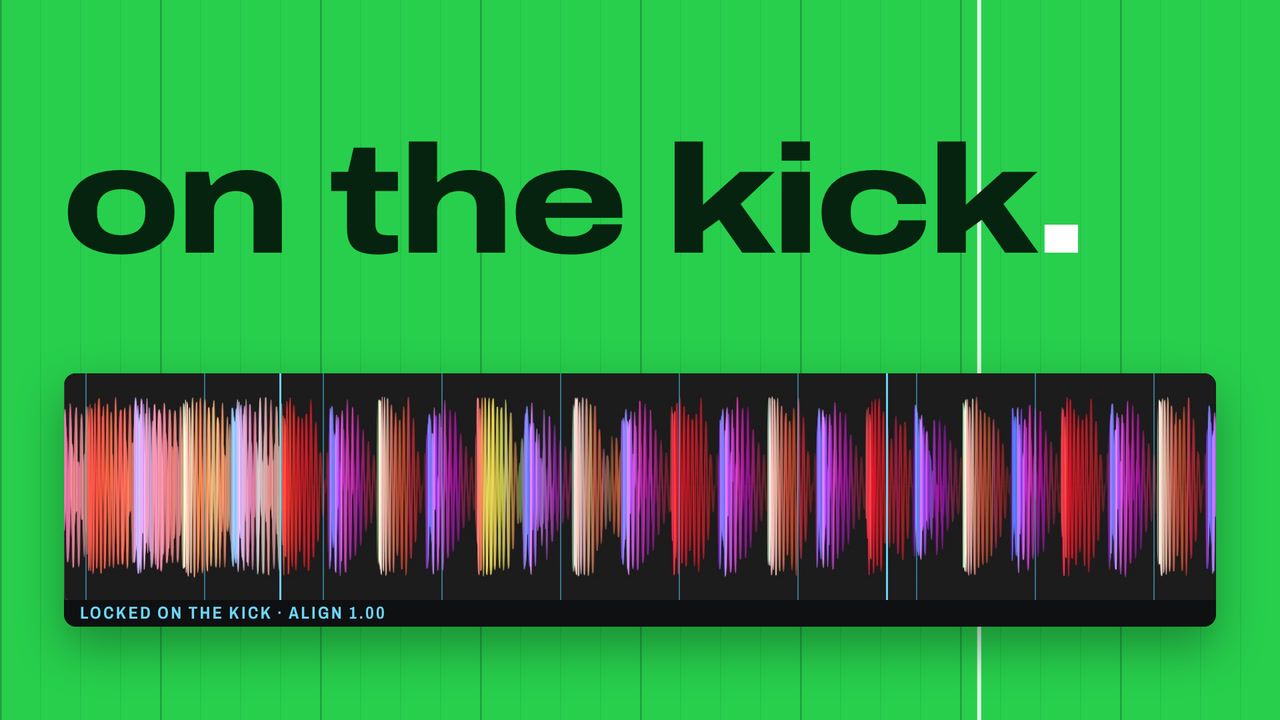
Write the grid to the file, where Serato reads it, so Serato doesn’t re-analyze the track and quietly undo your fix. Serato hard-caps beatgrids at 128 markers, so a well-built fluid grid stays within that.
Serato reads the new grid when it imports the track. If the track is already in your Serato library, Serato keeps the grid it has: remove the track from Serato’s library (not from your drive) and add it again. Re-scan File Info is enough for tags and keys, not for a grid. Serato can stay open while you work. Keep the track off the decks while you write, because Serato can write over the app’s changes when it unloads a track.
Read the score. A drifting grid usually shows up as high drift or jitter. Those are the tracks worth your time. The green ones are already fine; leave them alone.