 CrateEdit Pro
How to organize your Serato library: crates, subcrates and Smart Crates
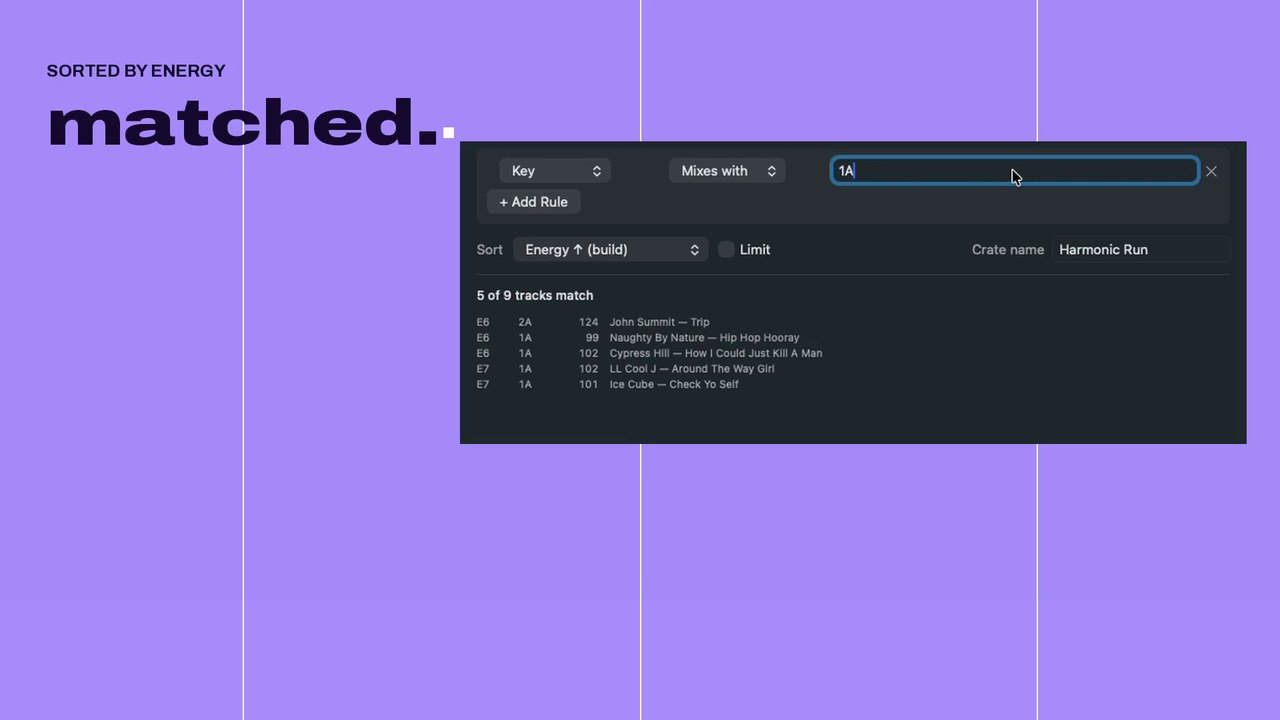
Smart Crates. Crates that fill themselves from rules, written into your Serato library.
A big library is only useful if you can find the right track in the booth. Here’s how folders and crates differ, a layout that holds up, a crate plan built around how you play, and Smart Crates that keep themselves filled.
The short version
- Folders hold your files. Crates point at them. One track can sit in ten crates and still be one file on your drive.
- Keep the folders boring. One music folder, short paths, and new downloads moved in before Serato sees them.
- Build crates around how you play. By gig, by genre and era, a “new this week” crate and a crate for each set.
- Let Smart Crates do the sorting. Rules like a BPM range or a word in the comment fill a crate by themselves.
- Clean tags first, and back up the crates. A Smart Crate is only as good as your tags, and crates live in a folder you can lose.
Folders and crates are not the same thing
Your folders are where the files actually live on your drive. Crates are lists inside Serato that point at those files. That difference is what makes crates useful: the same track can be in your “Wedding”, “90s Hip-Hop” and “Peak Time” crates at once without making three copies.
It also means a crate doesn’t protect anything. If you move or rename the file in Finder, every crate that pointed at it loses it. So decide where the files live first, and leave them there.
Keep the folders simple
Serato’s own advice is to keep all your music in one dedicated folder, inside your Music folder or on an external drive, and to keep the folder structure simple and the paths short. A layout that holds up:
- One main music folder, with a handful of subfolders by source or genre. Not a folder for every gig.
- A landing folder for new downloads. Downloads often save somewhere else; move them into your music folder before you import them.
- No renaming or moving once a file is in Serato, unless you’re ready to relink it.
Serato’s guide also shows a quick start: drag your subfolders into the Crates panel and it makes a crate for each one, with the same name.
Crates and subcrates
Make a crate with the Create Crate button, or drag a track onto empty space in the Crates panel. Drag one crate onto another and it becomes a subcrate. A parent crate can also show the tracks in its subcrates; that’s a setting in Serato’s Library setup, so you can turn it off if you’d rather it didn’t.
A crate plan that works for most DJs:
- By gig type: Wedding, Club, Bar, Corporate. Each with subcrates like Dinner, Dance Floor, Last Songs.
- By genre and era: Hip-Hop › 90s, 2000s, Current. House › Deep, Tech, Piano.
- A “New This Week” crate for whatever you just downloaded, emptied once it’s sorted.
- A “To Prep” crate for tracks that still need a grid, cues or tags.
- One crate per booked set, built from the others, so the night is ready before you leave the house.
Smart Crates: crates that fill themselves
A Smart Crate is a crate with rules instead of a hand-picked list. You add rules, choose whether a track has to match all of them or any of them, and Serato fills the crate from your library. With Live Update ticked, the crate updates by itself as your library changes; without it, it updates when you press the crate’s refresh button.
Ideas to start with:
- Warm-up: BPM between 100 and 115.
- Peak time house: genre contains house, BPM 124 to 128.
- Throwbacks: year before 2000.
- Your own labels: comment contains a word you tag tracks with, like “banger” or “wedding”.
Smart Crates you make in Serato DJ Pro also show up in Serato Studio.
Keep it working
- Clean tags first. A rule like “genre contains house” misses every track tagged “Hse” or left blank. Our guide to cleaning up DJ tags helps.
- Get rid of duplicates, or your crates fill up with two copies of the same song. See how to find duplicate tracks.
- Back up the _Serato_ folder. Your crates live there, in your Music folder and on every drive you’ve added music from. Our backup guide walks through it.
How CrateEdit Pro does it
CrateEdit Pro builds Serato Smart Crates from your whole Serato library. Open the Tag Editor and hit Smart Crate, pick a preset like Harmonic Run or set your own rules, and the matching tracks show up right away. It adds rules Serato doesn’t have on its own: Energy, and Key “mixes with”, which finds every track that mixes in key with the one you name. Name the crate and save it. It’s written into your Serato library, compatible with Serato’s format, and Serato shows it the next time it starts. With Live Update on, Serato keeps it current as new tracks come in.
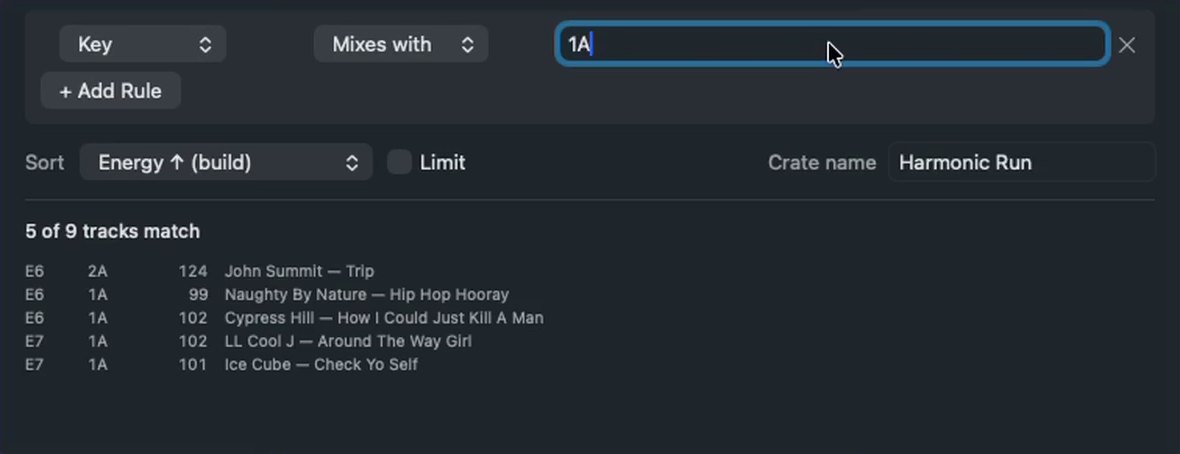
A Smart Crate in CrateEdit Pro. The rule Key mixes with 1A, sorted by energy, and the five tracks that match.
See it in 26 seconds: Serato Smart Crates That Fill Themselves, or with the other tutorials on the Learn page.
Sources
- The most professional way to organize and manage your music library with Serato DJ, Serato: one music folder, simple structure, subfolders into crates, adding new music.
- Library: Smart Crates, Serato: rules, match all or any, Live Update, Serato Studio.
- Library: Crates panel, Serato: creating crates, subcrates by dragging, parent crates showing subcrate tracks (Serato’s help for its crates panel, shared with Serato Studio).