 CrateEdit Pro
How to find duplicate tracks in your Serato library
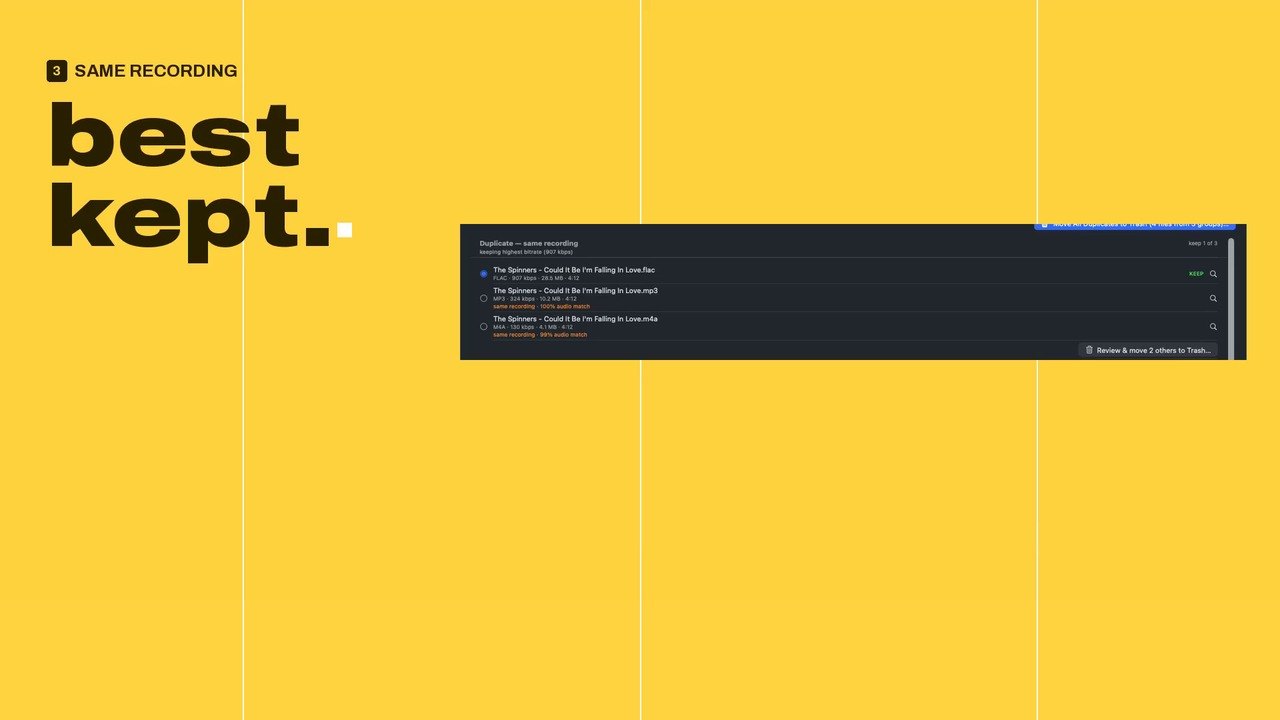
Duplicates, found by sound. Copies of the same song are grouped and the best one is kept.
Every DJ library collects duplicates: the same song from two record pools, a FLAC and an MP3, a file called “(1)”. Here’s why searching by name misses most of them, how finding them by sound works, which copy to keep, and how to remove the extras so they don’t come back in Serato.
The short version
- Duplicates pile up quietly. Record pools, re-downloads, a FLAC and an MP3 of the same song, a file called “(1)” from a browser that saved it twice.
- Names don’t find them. The same song can have three different file names, and two different songs can share one.
- Sound does. Comparing the audio itself finds copies across formats and bitrates, and tells a real copy from a different edit.
- Keep the best copy, not the first one. Lossless or the highest bitrate, and the one your crates and cues already use.
- Delete the file, not just the library entry. Otherwise Serato finds the copy again the next time it scans the folder.
Where duplicates come from
Nobody sets out to download a song twice. It happens a little at a time. You grab a track from one record pool, then the same one shows up in another pool’s weekly pack. You buy the WAV for a big room and keep the MP3 you already had. A browser saves a second copy as “Song (1).mp3”. You move an old drive’s music onto a new one and some folders end up on both.
A few copies don’t hurt anything. A few hundred do. They waste space on your laptop and your USB sticks, they clutter search results in the booth, and they split your work: you set cues on one copy, then load the other one mid-set and find nothing there.
Why searching by name doesn’t work
The obvious way is to sort your library by title and look for doubles. It catches some, and misses a lot:
- Different names, same song. “Mala Mía.mp3”, “Maluma - Mala Mia (Original Mix).mp3” and “01 Mala Mía.m4a” can all be the same recording.
- Same name, different song. Two songs called “Hold On” by different artists aren’t duplicates at all.
- Same song, different edit. A clean and a dirty version, or an intro edit and the original, look like doubles by name but you want to keep both.
File size and bitrate help you pick which copy to keep, but they can’t tell you which files are copies in the first place.
Finding them by sound
A duplicate finder that listens compares the audio itself. It makes a fingerprint of each track, a summary of what it sounds like, and groups the files whose fingerprints match. That works across formats and bitrates: a 128 kbps MP3 and a FLAC of the same recording come out as a match, whatever they’re called.
A good one also sorts what it finds, because not every match should go:
- Exact copy. The same file twice, byte for byte. Safe to remove the extra.
- Same recording. The same audio in another format or bitrate. Keep the best, remove the rest.
- Different edits. Close, but not the same: a clean and a dirty version, an extended mix. Keep both.
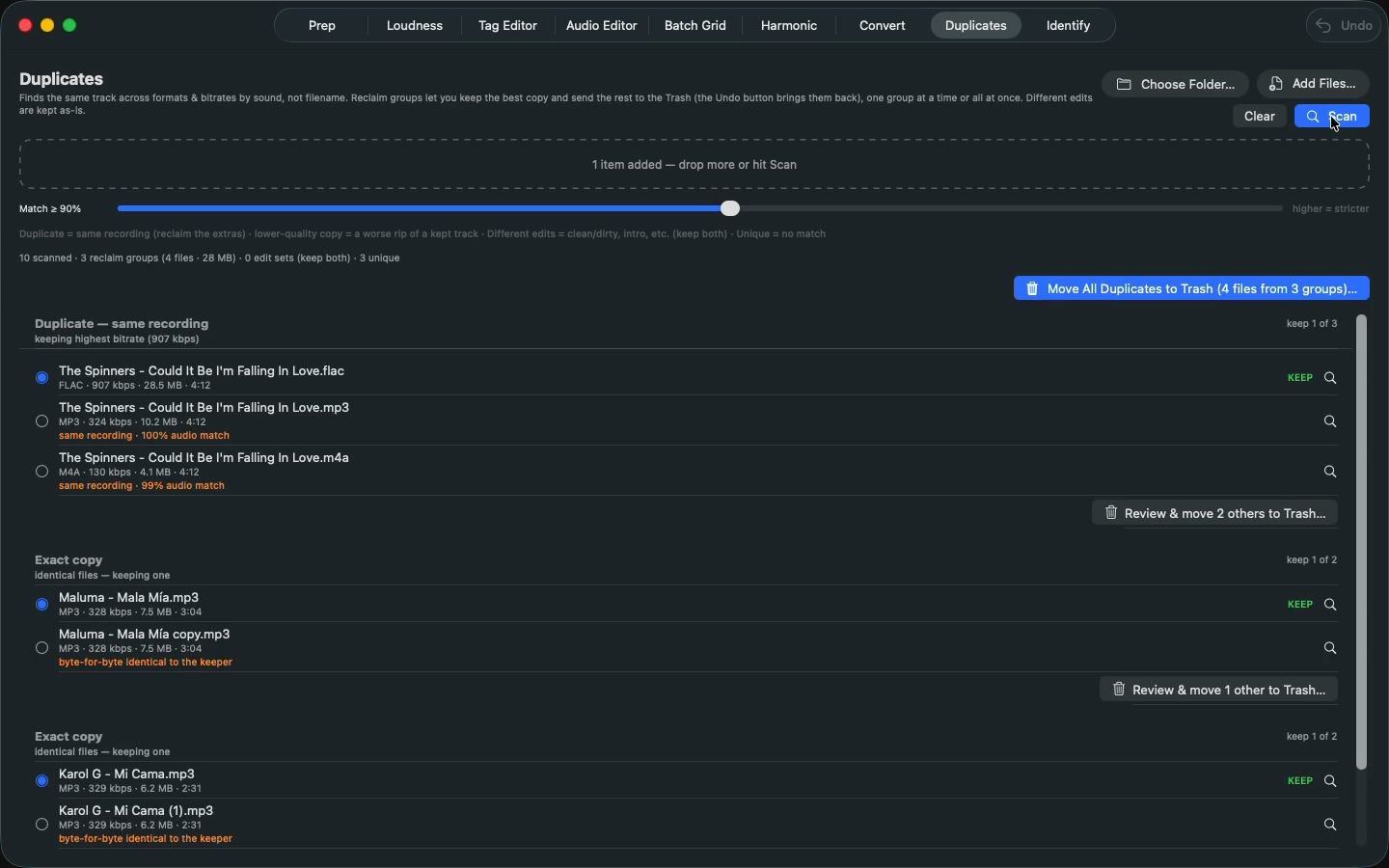
Duplicates in CrateEdit Pro. The same song as FLAC, MP3 and M4A is found by sound and the FLAC is kept. Below it, two exact copies with different file names.
Which copy to keep
- Quality first. Lossless (WAV, AIFF, FLAC) beats MP3, and a real 320 beats a 128. Watch for fake 320s: a file can say 320 and still be a re-encoded 128. Our fake 320s article shows how to spot them.
- Then the copy you’ve already worked on. If one copy has your hot cues, beatgrid and key, and it sits in your crates, that’s usually the one to keep, or you’ll be redoing that work.
- Then the copy in the right folder. Keep the one in the folder your library and your backups actually use, not the one in Downloads.
Removing them without breaking Serato
Here’s the catch most DJs hit once. Deleting a track inside Serato removes it from the library, not from your drive. The next time Serato scans that folder, it finds the file again and the duplicate is back. Digital DJ Tips points out that Ctrl/Cmd + Delete in Serato removes the file itself, so check which copy you’ve selected before you press it.
A few habits keep it safe:
- Back up your library first. Your crates and analysis live in the _Serato_ folder in your Music folder, and on every drive you’ve added music from. Our backup guide walks through it.
- Close Serato while you clean up the files, then open it again.
- Move extras to the Trash, don’t erase them. Leave the Trash alone for a gig or two, so a wrong pick can still come back.
- Check your crates afterwards. If a crate pointed at a copy you removed, Serato shows that track as missing. Add the copy you kept in its place.
How CrateEdit Pro does it
The Duplicates tab in CrateEdit Pro finds copies by sound, not by name, across MP3, FLAC, M4A, AAC, WAV, AIFF, CAF and ALAC. It groups them as Exact copy, Same recording, Same recording with lower-quality copies, or Different edits, and different edits are kept as they are. In each group it picks a keeper, and you can change it. Then send the extras to the Trash one group at a time, or all at once. Nothing is deleted outright, and the Undo button brings them back while they’re still in the Trash.
See it in 29 seconds: Find Duplicate Tracks by Sound, Not Filename, or with the other tutorials on the Learn page. While you’re tidying up, cleaning up your DJ tags is the natural next step.
Sources
- Serato trick: how to stop duplicate tracks reappearing, Digital DJ Tips: deleting in Serato removes the library entry, so a rescan brings the copy back; Ctrl/Cmd + Delete removes the file.
- Missing or duplicate files in Serato DJ, We Are Crossfader: duplicates and missing files in a Serato library.