 CrateEdit Pro
FAT32, exFAT or APFS: how to format a USB stick for CDJs and Serato
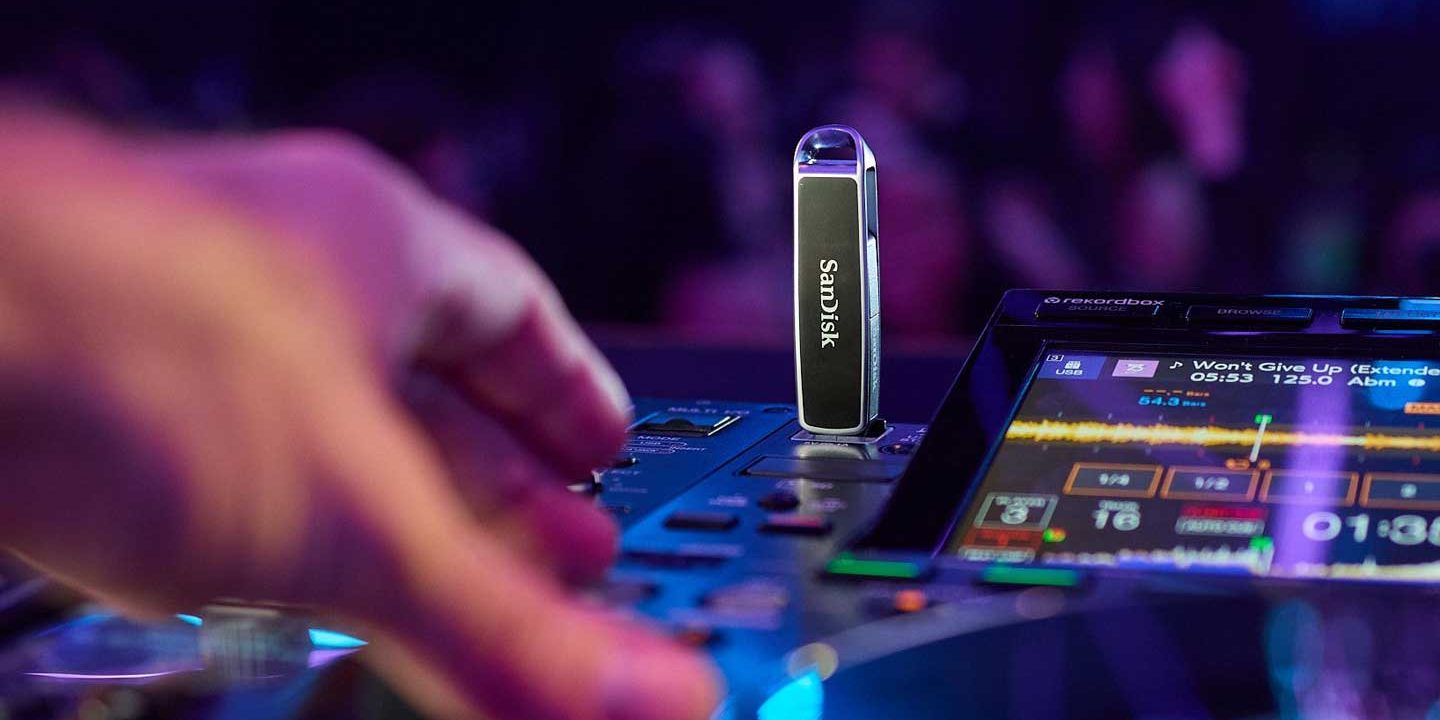
A stick in a player, mid-set. What the player shows depends on the file system and the library on the stick.
Image: AlphaTheta
A stick that plays at home and shows nothing on the club’s players is almost always one of three things: a file system the player can’t read, a library the player doesn’t look at, or a player that wants USB-C. Here’s how to rule out all three.
What the players read
A USB stick has a file system, the way the stick is organized. Your Mac reads almost all of them. DJ players read a few, and newer players read more than older ones.
| File system | CDJ-3000X | Engine DJ | Mac | Windows |
|---|---|---|---|---|
| FAT32 (MS-DOS) | Reads | Reads | Reads | Reads |
| exFAT | Reads | Recommended | Reads | Reads |
| Mac OS Extended (HFS+) | Reads | With a Mac only | Reads | No |
| APFS | No | With a Mac only | Reads | No |
| NTFS | No | With Windows only | Reads only | Reads |
Which file systems each side reads. The CDJ-3000X column is AlphaTheta’s specification; the Engine DJ column is Engine DJ’s drive guide, which recommends exFAT. Older players read fewer: check your player’s manual.
Two of them catch people out. APFS is what a Mac picks for a new drive by default, and the players don’t read it. NTFS is a Windows format that the CDJ-3000X doesn’t read. Format the stick for the players first, then put your music on it.
FAT32 or exFAT?
- FAT32, called MS-DOS (FAT) on a Mac, is the safe choice for older players. Its one limit: no single file over 4 GB, far bigger than any song.
- exFAT has no 4 GB limit and suits big sticks. The CDJ-3000X reads it, and Engine DJ recommends it, but some older players don’t.
- Mac OS Extended (HFS+) is read by Pioneer’s players and the Mac, but not by Windows, so a stick you share with a Windows laptop won’t open there.
If you only play one brand of gear, pick what its newest manual says. If you play wherever you’re booked, FAT32 opens on the most players.
Format a stick on a Mac
This erases the stick, so copy anything you need off it first.
- Plug the stick in and open Disk Utility, in Applications › Utilities.
- Choose View › Show All Devices, then click the stick itself in the sidebar, not the volume under it.
- Click Erase. Give it a short name with no symbols.
- Format: MS-DOS (FAT) for FAT32, or ExFAT. If Disk Utility asks for a scheme, pick Master Boot Record.
- Click Erase, wait, then export your music to it from your DJ software.
- Name
- DJ STICK
- Format
- MS-DOS (FAT) or ExFAT
- Scheme
- Master Boot Record
The three settings in Disk Utility’s Erase window. Written out here, not a picture of macOS.
The CDJ-3000X catch: which library is on the stick
The players don’t just read your music files. They read a library that your DJ software writes next to them, with the playlists, grids, cue points and waveforms. rekordbox writes two kinds. OneLibrary is the newer one, read by the CDJ-3000X, the XDJ-AZ, the OPUS-QUAD and the OMNIS-DUO. The Device Library is the older one, read by the CDJ-3000, the XDJ-XZ, the XDJ-RX3, the XDJ-RR and earlier players.
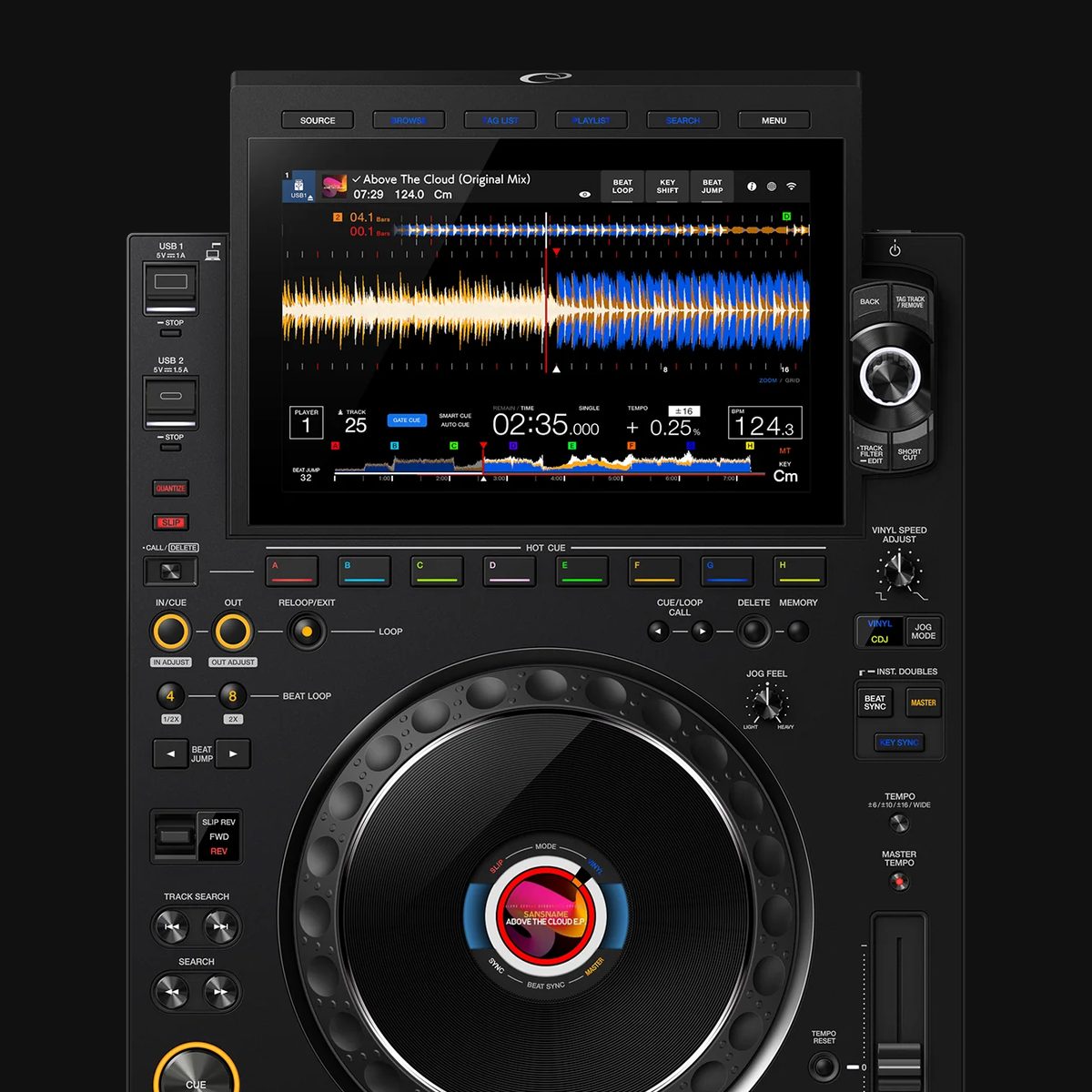
The CDJ-3000X reads OneLibrary, and FAT16, FAT32, exFAT and HFS+ sticks.
Image: AlphaTheta
In March 2026 AlphaTheta warned that playlists in the Device Library format show up on a CDJ-3000 but may not appear on a CDJ-3000X. The fix is to export the stick with rekordbox 7.2.11 or later, which writes both libraries at once. An old stick you’ve been topping up for years is the one most likely to come up empty on new players.
The new players want USB-C
The CDJ-3000X has two USB-C ports and one USB-A port for drives. The XDJ-AN, AlphaTheta’s new two-channel all-in-one, goes further: its drive port is a single USB-C, and it only takes USB-C drives. If you play on newer gear, carry a stick with both plugs or a USB-C one.
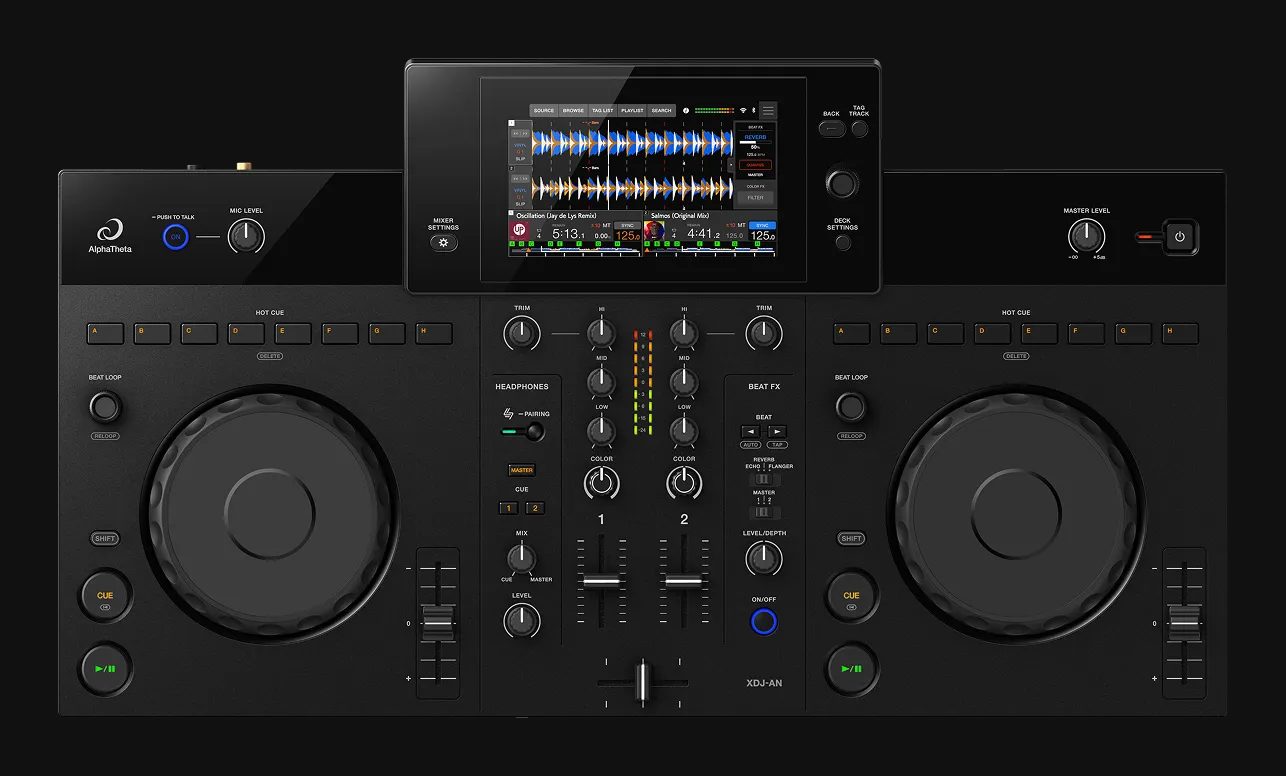
The XDJ-AN, AlphaTheta’s new two-channel all-in-one: its drive port takes USB-C only.
Image: AlphaTheta
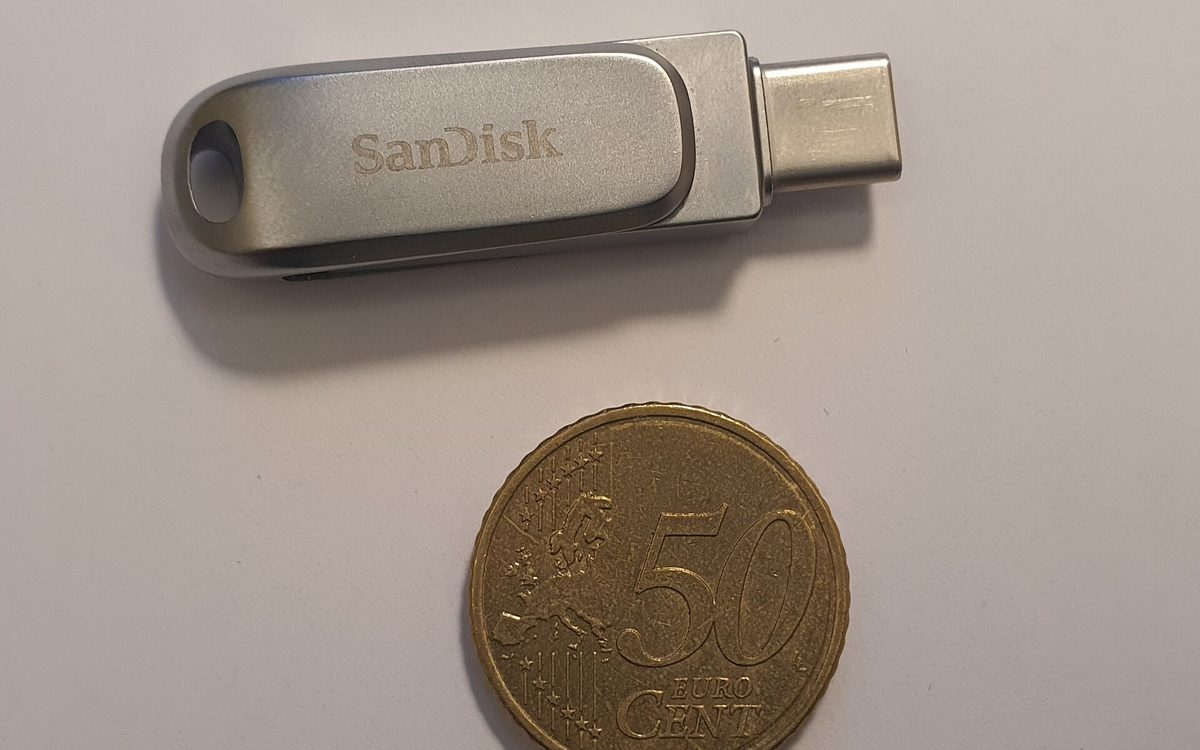
A USB-C stick. Newer players have USB-C drive ports; some have only that.

Habits that save a night
- Carry two sticks with the same export on both. Sticks fail, and they fail at the worst time.
- Eject before you pull it out, on the laptop and on the player.
- Export again after big changes in your library, so the stick and your laptop agree.
- Label your sticks. Every DJ in the booth has a black one.
- Keep your music library on your laptop as well, not only on the stick.
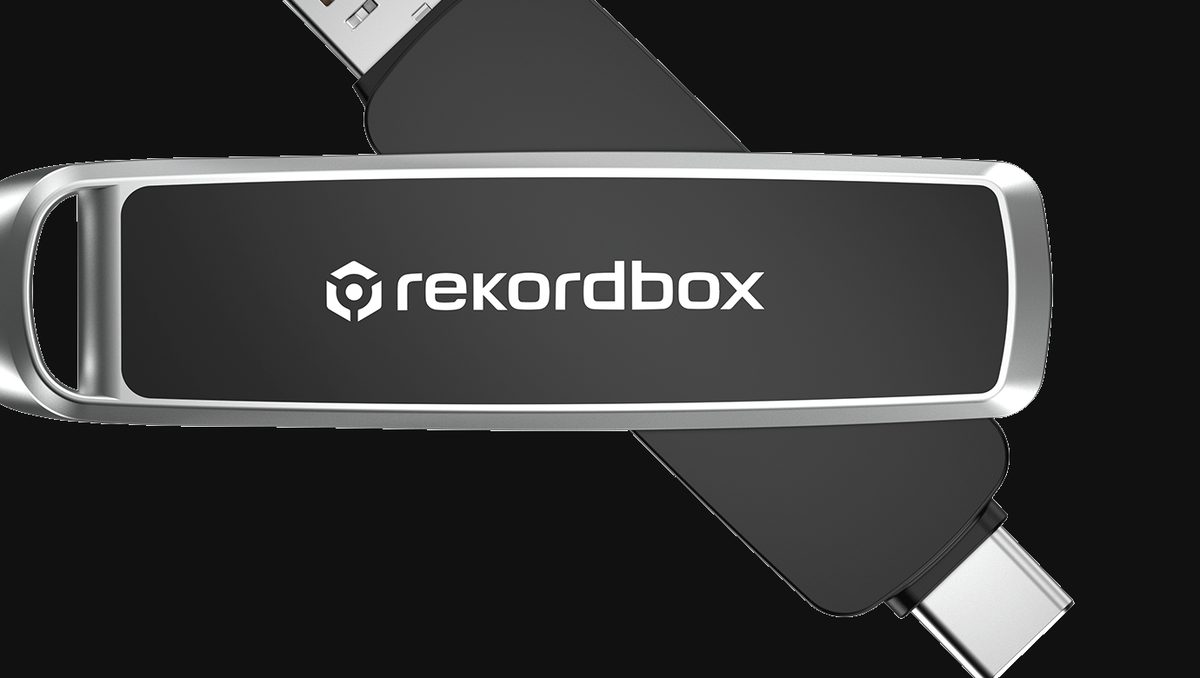
One stick, both plugs. A dual USB-A and USB-C drive, sold with the rekordbox name on it, fits old and new players.
Image: SanDisk
From Serato to a stick
Serato itself plays from the laptop, and it reads any drive your Mac reads. It writes a _Serato_ folder at the top of every drive you add music from, with that drive’s crates. To play your Serato crates on club players without a laptop, they have to be turned into a library the players read.
That’s what CrateEdit Pro’s USB tab does. Tick your Serato crates, pick a stick and export: for Pioneer DJ players it writes both of rekordbox’s libraries, the Device Library and OneLibrary, and each track’s analysis files, to sticks formatted FAT32 or Mac OS Extended, so one stick is made for the older players and the CDJ-3000X alike. For Engine DJ players it writes Engine DJ’s own library, to exFAT or FAT32.

In CrateEdit Pro. The USB tab after a Pioneer DJ export of three crates of practice tracks to a test stick.
Sources
- CDJ-3000X specifications, AlphaTheta: file systems, ports, OneLibrary.
- Important notice for customers using USB devices with our DJ equipment, AlphaTheta, March 18, 2026.
- AlphaTheta XDJ-AN, DJ TechTools, July 9, 2026.
- Engine DJ: setting up your drive, Engine DJ support.
- The _Serato_ folder, Serato support.